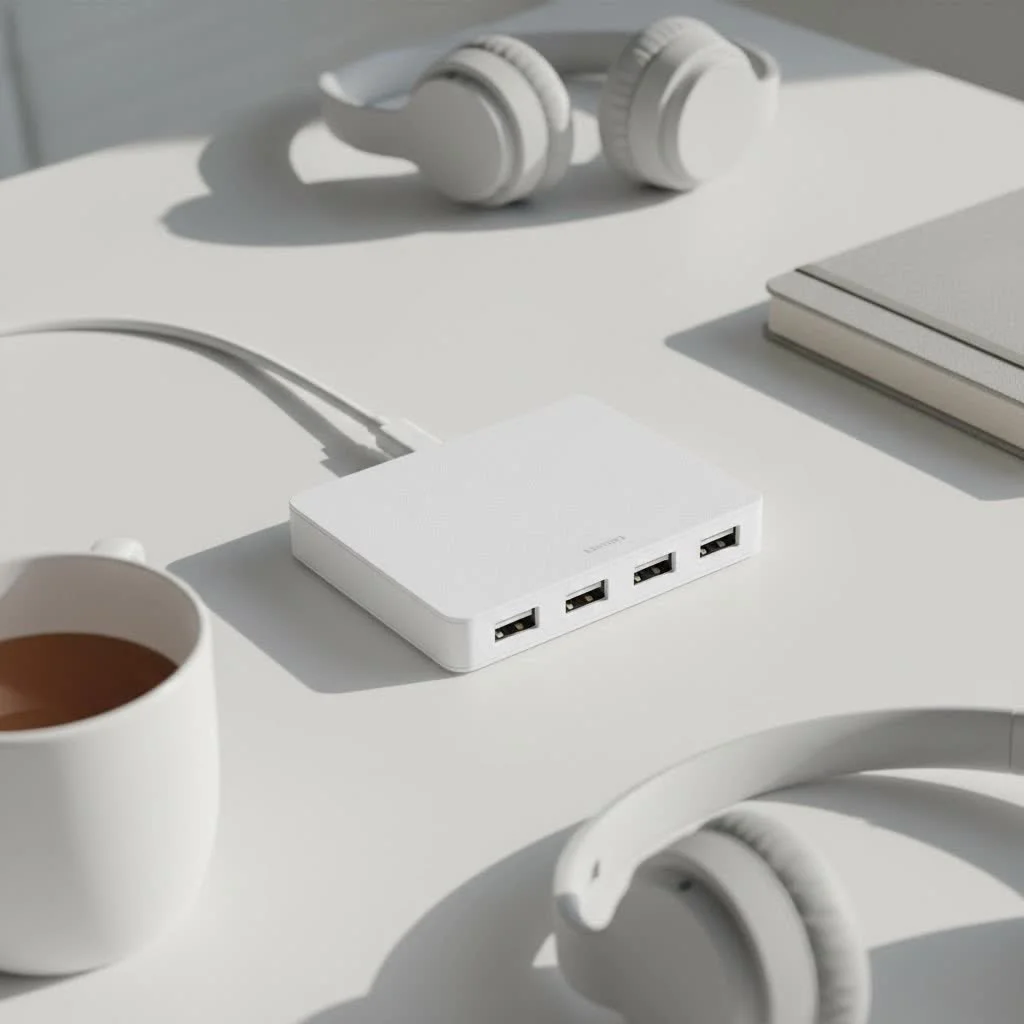
A USB Type C hub for your MacBook is an essential tool that expands your laptop’s connectivity, transforming a single USB-C port into a versatile command center for multiple peripherals. Modern MacBooks, while sleek, often lack sufficient ports for external monitors, flash drives, or SD cards, making a hub crucial for unlocking the device’s full potential. This simple adapter allows users to connect various accessories simultaneously, enhancing productivity and convenience.
What’s a USB-C Hub, and Why Isn’t It a Dock?
Before we dive in, let’s clear up a common point of confusion. While people often use the terms “hub” and “dock” interchangeably, they serve slightly different purposes.
A USB-C hub is typically a small, portable adapter that plugs directly into your MacBook’s USB-C (or Thunderbolt) port. It’s designed to give you several essential ports on the go. Think of it as a multi-tool for your laptop.
A docking station, on the other hand, is usually a larger, stationary unit that sits on your desk. It often has its own power supply and can support more high-powered peripherals and multiple monitors, effectively turning your MacBook into a full-fledged desktop setup. For most users on the move, a hub is the perfect balance of portability and functionality.
Must-Have Ports in a MacBook USB-C Hub
Choosing a USB Type C hub for a MacBook can feel overwhelming with all the options available. The key is to match the ports to your specific needs. Here are the most important ones to consider.
HDMI or DisplayPort: Unleash the Big Screen
To present a slideshow, stream a movie, or set up a dual-monitor display, a hub with an HDMI or DisplayPort output is essential. Most hubs offer HDMI, which is compatible with the majority of modern displays and TVs. Look for hubs that support 4K resolution at 60Hz for a smooth, crisp video experience, especially if you work with video or enjoy high-fidelity gaming.
USB-A: Connecting Your Legacy Tech
Despite the industry’s shift to USB-C, most users still own plenty of devices that use the classic rectangular USB-A port, including flash drives, keyboards, mice, webcams, and external hard drives. A good hub should have at least two or three USB-A ports to ensure you can connect your existing accessories without having to buy all-new ones.
SD and microSD Card Readers: A Lifeline for Creatives
For photographers, videographers, and content creators, built-in SD and microSD card readers are a major upgrade. Directly transferring photos and videos from your camera’s memory card to your MacBook without a separate, clumsy reader saves significant time and hassle. If you work with media, this is an absolute must-have feature in your hub.
Ethernet Port: For Rock-Solid Internet
|
Our Picks for the Best USB Hub in 2026
As an Amazon Associate I earn from qualifying purchases.
|
||
| Num | Product | Action |
|---|---|---|
| 1 | Anker Laptop Docking Station Dual Monitor, 8-in-1 USB C Hub, 4K Dual Monitor with 2 HDMI, 1 Gbps Ethernet Hub, 85W Power Delivery, SD Card Reader for MacBook Pro, XPS and More (Charger not Included) |

|
| 2 | USB Hub 3.0, 7-Port USB Hub Splitter with Individual On/Off Switches and Lights, 3.2ft/1m Long Cable Compatible with MacBook, Laptop, Surface Pro, PS4, PC, Flash Drive, Mobile HDD |
|
| 3 | Powered USB Hub 10Gbps, intpw 9-Port USB 3.2 Hub, USB C Hub with USB A/USB C 3.2, 4 USB 3.0, 2 PD 45W Charging Ports, 65W Power Adapter and 3.3FT Cable, Aluminum USB Hub for Laptop, iPhone 17/16/15,PC |
|
| 4 | Powered USB Hub, Wenter 11-Port USB Splitter Hub (10 Faster Data Transfer Ports+ 1 Smart Charging Port) with Individual LED On/Off Switches, USB Hub 3.0 Powered with Power Adapter for Mac, PC |
|
| 5 | UGREEN USB 3.0 Hub, 4 Ports USB A Splitter Ultra-Slim USB Expander for Mouse, Keyboard, Flash Drive, U Disk, Printer Compatible with Laptop, Desktop PC, Xbox, PS5, and More |
|
| 6 | 13 in 1 USB C Docking Station - Dual Monitor, Triple Display, 8 USB C/A Ports, Ethernet, Audio - LIONWEI USB C Hub for MacBook,Dell,HP,Lenovo,Surface |
|
| 7 | P9R PRO USB C Hub Ethernet, 10 in 1 USB Docking Station 10Gbps with 4K@60Hz HDMI, USB C and 2 USB A 3.2, LAN, 2 USB A 2.0, PD 100W, SD/TF Ports, USB to Ethernet Adapter for PC, iPhone 16/15, Mac |
|
| 8 | USB C Docking Station with M.2 NVMe SSD Enclosure 10Gbps, 9 in 1 USB-C Hub, Type C SSD Slot with 4K@60Hz HDMI, USB 3.2 Gen2, PD100W, SD/TF Card Reader, Laptop Docking Station for Dell/HP/Lenovo/Mac |
|
| 9 | Anker USB Hub 4 Ports with 5Gbps Data Transfer, Multiple USB 3.0 Hub, USB Splitter for Laptop, Extender for A Port Laptop, PC, Desktop and More [Charging Not Supported](0.7 ft USB-A) |
|
| 10 | 3-in-1 USB C Splitter, 3 in 1 Type-C Charging Data Cable Data Transmission Decive Charging Adapter Power Charger Equipment for ome Office Use, Fast & Efficient |
|
While Wi-Fi is convenient, it’s not always reliable. For online gaming, high-stakes video calls, or downloading massive files, a wired internet connection is unbeatable. An Ethernet port on your USB-C hub provides a direct, stable connection to the network, eliminating lag and dropouts when you need peak performance.
USB-C Power Delivery (PD): Charge Through Your Hub
This is one of the most critical features. A port with Power Delivery allows you to plug your MacBook’s charger into the hub itself, which then passes power through to your laptop. This means you can charge your MacBook and use all the other ports on the hub simultaneously, all through a single USB-C connection on your laptop. Without it, you’d have to choose between charging and using your accessories.
“When selecting a hub, always start by analyzing your daily workflow,” advises David Chen, a senior tech hardware specialist at Meeob. “A photographer’s ‘perfect’ hub with dual SD slots is useless to a remote worker who needs a stable Ethernet port above all else. Don’t pay for ports you won’t use.”
How to Choose the Right USB-C Hub for You
The best USB Type C hub for a MacBook depends entirely on the user. Let’s break it down by common user profiles.
For the MacBook Air User: Portability is King
MacBook Air users value lightness and mobility. The ideal hub should be compact, lightweight, and cover the essentials.
- Key Ports: 1-2 USB-A ports, an HDMI port, and an SD card reader.
- Power Delivery: Important for keeping the device charged during extended use away from an outlet.
- Focus: A slim, all-in-one design that doesn’t add bulk to your bag.
For the MacBook Pro User: Power and Performance
MacBook Pro users often have more demanding workflows that require higher speeds and more connections.
- Key Ports: Multiple USB-A ports (with at least one supporting USB 3.0 speeds), 4K@60Hz HDMI, an Ethernet port, and high-speed SD card readers (UHS-II).
- Power Delivery: Look for hubs that support higher wattage (87W or more) to charge the MacBook Pro at full speed.
- Focus: Durability and performance. A hub with an aluminum casing often provides better heat dissipation for handling heavy loads.
Checklist: Finding Your Perfect Hub
Use this quick checklist to narrow down your options:
- [ ] Compatibility: Does it explicitly support your MacBook model?
- [ ] Essential Ports: Does it have the HDMI, USB-A, and card readers you need?
- [ ] Power Delivery: Can it pass through enough power to charge your MacBook effectively?
- [ ] Video Output: Does it support the resolution and refresh rate you need (e.g., 4K at 60Hz)?
- [ ] Build Quality: Is it made from durable materials like aluminum?
- [ ] Portability: Is it compact and light enough for your travel needs?
Frequently Asked Questions (FAQ)
Can a cheap USB-C hub damage my MacBook?
Yes, a poorly made, uncertified hub can potentially cause damage to your MacBook. Low-quality hubs may have improper power management, which could harm your MacBook’s ports or battery over time. It’s always best to invest in a reputable brand that offers a warranty and has positive user reviews to ensure safety.
Do USB-C hubs drain my MacBook’s battery?
A hub does draw a small amount of power from the MacBook to operate, but it’s generally minimal. However, if you have multiple power-hungry devices (like an external HDD) connected to the hub, you will notice a faster battery drain. Using a hub with Power Delivery is the best way to mitigate this effect.
Why is my external display flickering when connected through the hub?
Flickering is often caused by an unstable connection or insufficient bandwidth. Try a different, high-quality HDMI cable first to rule out cable issues. If the problem persists, the hub may not fully support the resolution and refresh rate of your monitor; ensure your hub is rated for 4K@60Hz if you’re using a 4K display.
How many devices can I connect to a hub at once?
You can use all the ports on the hub simultaneously, but there’s a limit to the total power and data bandwidth. If you connect too many high-power or high-speed devices at once (e.g., two external hard drives and a 4K monitor), you might experience performance issues like slower transfer speeds or reduced functionality.
Your MacBook’s Full Potential, Unlocked
A USB Type C hub for your MacBook is more than just an accessory; it’s the bridge between your laptop and the rest of your digital world. It restores the connectivity that was sacrificed for sleek design, ensuring your workflow is never interrupted by a missing port. By identifying your key needs—whether it’s connecting a monitor, transferring photos, or getting a stable internet connection—you can choose the perfect hub that transforms your MacBook into the versatile powerhouse it was meant to be.
Frequently Asked Questions
Can a cheap USB-C hub damage my MacBook?
Yes, a poorly made, uncertified hub can potentially cause damage to your MacBook. Low-quality hubs may have improper power management, which could harm your MacBook's ports or battery over time. It's always best to invest in a reputable brand that offers a warranty and has positive user reviews to ensure safety.
Do USB-C hubs drain my MacBook's battery?
A hub does draw a small amount of power from the MacBook to operate, but it's generally minimal. However, if you have multiple power-hungry devices (like an external HDD) connected to the hub, you will notice a faster battery drain. Using a hub with Power Delivery is the best way to mitigate this effect.
Why is my external display flickering when connected through the hub?
Flickering is often caused by an unstable connection or insufficient bandwidth. Try a different, high-quality HDMI cable first to rule out cable issues. If the problem persists, the hub may not fully support the resolution and refresh rate of your monitor; ensure your hub is rated for 4K@60Hz if you're using a 4K display.
How many devices can I connect to a hub at once?
You can use all the ports on the hub simultaneously, but there's a limit to the total power and data bandwidth. If you connect too many high-power or high-speed devices at once (e.g., two external hard drives and a 4K monitor), you might experience performance issues like slower transfer speeds or reduced functionality.
What is the difference between a USB-C hub and a docking station?
A USB-C hub is typically a small, portable adapter designed for on-the-go essential port expansion. In contrast, a docking station is usually a larger, stationary unit with its own power supply, supporting more high-powered peripherals and multiple monitors for a full desktop setup. Hubs prioritize portability, while docks prioritize extensive connectivity.
Get our weekly buyer guide
Practical specs, not advice. Unsubscribe anytime.
I’ve been looking for a good USB-C hub for my MacBook Pro for ages, and this guide really helped me pick the right one. I needed something that could handle an external monitor and a couple of flash drives without any lag. The one I got, based on the recommendations, works perfectly and truly transforms my single USB-C port into a full workstation. So much better than carrying around multiple dongles!
Finally, a clear explanation of why a USB-C hub is crucial for modern MacBooks! I was always running out of ports for my external keyboard, mouse, and a portable SSD. The hub I purchased after reading this has made my life so much easier. It’s compact, portable, and truly unlocks the full potential of my device, just as described.
This was a great resource for finding a versatile command center for my MacBook. I specifically needed something that could handle my older USB-A peripherals and also charge my phone. The hub I chose has multiple USB-A ports and a power delivery pass-through, which is exactly what I needed to enhance my productivity. It’s super convenient for my home office setup.
The information here was pretty helpful in understanding the difference between a hub and a dock. I ended up getting a hub for my MacBook Air, mainly for connecting an SD card reader and my external hard drive. It works fine for those, but I noticed it gets a bit warm when I have both connected for extended periods. Not a dealbreaker, but something to keep in mind if you’re using it heavily.