A USB-C hub for MacBook Pro is an essential productivity tool that bridges the gap between Apple’s minimalist design and the diverse world of peripherals, allowing users to connect USB-A devices, SD cards, and HDMI monitors. These hubs consolidate multiple connections into one compact device, simplifying workflows and expanding port selection beyond the two or four identical USB-C (Thunderbolt) ports found on modern MacBook Pros.
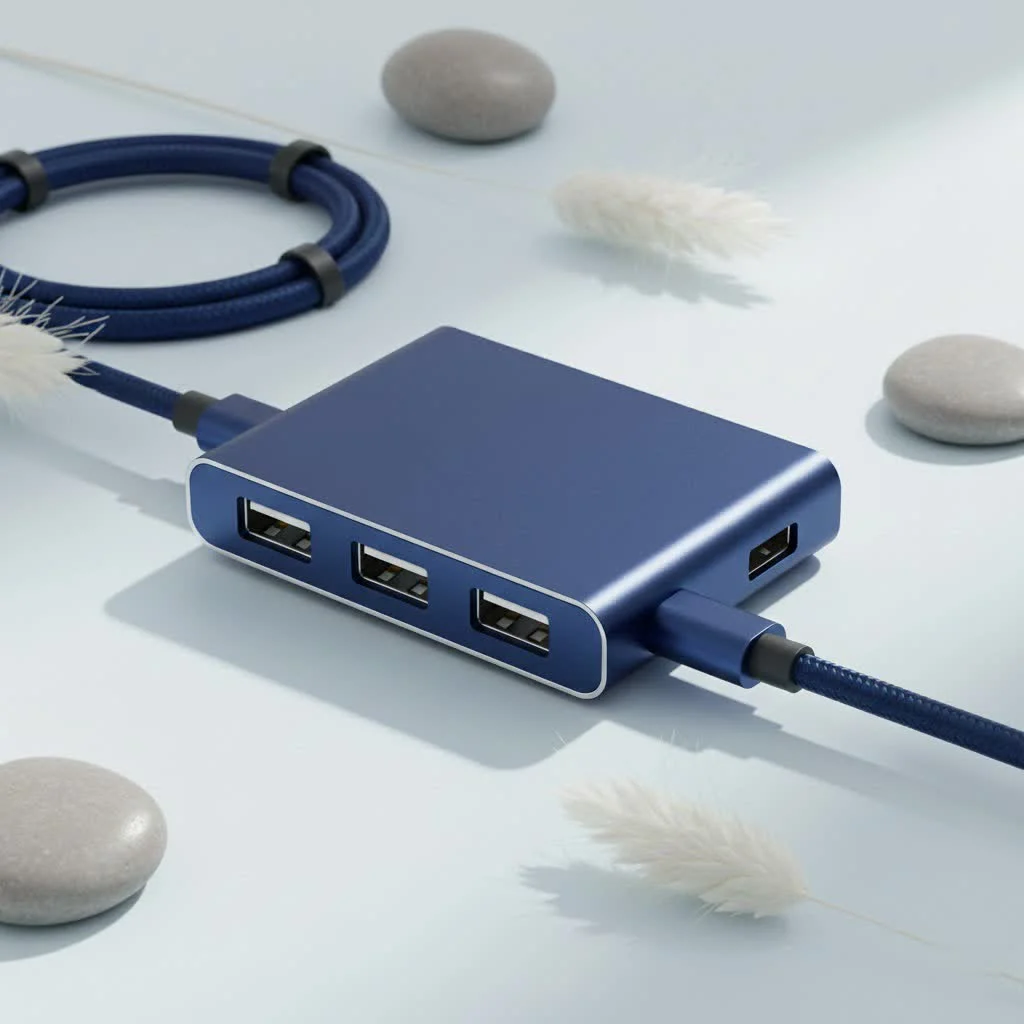
For over a decade, Meeob has helped users understand complex world of connectivity, demonstrating how the right hub can unlock a MacBook’s true potential by creating a streamlined, efficient, and powerful workstation tailored to specific needs.
Why Your MacBook Pro Needs a USB-C Hub
Apple’s commitment to the USB-C standard offers incredible speed and versatility, but it also created a void for users who rely on a variety of older, functional devices. A USB-C hub for a MacBook Pro is the most effective solution to this connectivity challenge.
Instead of carrying a tangled mess of individual dongles for a mouse, external display, or camera’s SD card, a hub consolidates everything into one compact device. This cleans up your desk, simplifies your workflow, and ensures you’re prepared for any connection scenario, whether for a client presentation or on-the-go photo editing.
Key Features to Look For in a MacBook Pro USB-C Hub
Choosing a hub isn’t a one-size-fits-all situation; the best choice depends entirely on your workflow. Consider these critical features to find the perfect match for your MacBook Pro.
The Right Ports for Your Peripherals
The core function of any hub is to expand your port selection. Before buying, inventory the devices you use daily.
- USB-A Ports: Essential for legacy devices like keyboards, mice, flash drives, and external hard drives. Look for hubs with at least two USB 3.0 ports, offering speeds up to 5Gbps, a significant upgrade from older USB 2.0.
- HDMI/DisplayPort: If you connect your MacBook Pro to an external monitor or projector, a dedicated video output is crucial. An HDMI port supporting 4K resolution at a 60Hz refresh rate provides a smooth, crisp viewing experience, vital for video editing and graphic design.
- Ethernet Port: While Wi-Fi is convenient, a wired internet connection offers superior speed, stability, and security. An Ethernet port is a must-have for professionals needing reliable connectivity for video conferencing, large file transfers, or online gaming.
- SD and microSD Card Readers: For photographers, videographers, and content creators, a built-in card reader eliminates the need for a separate adapter, allowing direct and efficient file transfers from your camera.
Power Delivery (PD): Charge Everything at Once
|
Our Picks for the Best USB Hub in 2026
As an Amazon Associate I earn from qualifying purchases.
|
||
| Num | Product | Action |
|---|---|---|
| 1 | USB C Docking Station with M.2 NVMe SSD Enclosure 10Gbps, 9 in 1 USB-C Hub, Type C SSD Slot with 4K@60Hz HDMI, USB 3.2 Gen2, PD100W, SD/TF Card Reader, Laptop Docking Station for Dell/HP/Lenovo/Mac |

|
| 2 | Powered USB Hub, Wenter 11-Port USB Splitter Hub (10 Faster Data Transfer Ports+ 1 Smart Charging Port) with Individual LED On/Off Switches, USB Hub 3.0 Powered with Power Adapter for Mac, PC |
|
| 3 | P9R PRO USB C Hub Ethernet, 10 in 1 USB Docking Station 10Gbps with 4K@60Hz HDMI, USB C and 2 USB A 3.2, LAN, 2 USB A 2.0, PD 100W, SD/TF Ports, USB to Ethernet Adapter for PC, iPhone 16/15, Mac |
|
| 4 | 3-in-1 USB C Splitter, 3 in 1 Type-C Charging Data Cable Data Transmission Decive Charging Adapter Power Charger Equipment for ome Office Use, Fast & Efficient |
|
| 5 | 13 in 1 USB C Docking Station - Dual Monitor, Triple Display, 8 USB C/A Ports, Ethernet, Audio - LIONWEI USB C Hub for MacBook,Dell,HP,Lenovo,Surface |
|
| 6 | USB Hub 3.0, 7-Port USB Hub Splitter with Individual On/Off Switches and Lights, 3.2ft/1m Long Cable Compatible with MacBook, Laptop, Surface Pro, PS4, PC, Flash Drive, Mobile HDD |
|
| 7 | Anker USB Hub 4 Ports with 5Gbps Data Transfer, Multiple USB 3.0 Hub, USB Splitter for Laptop, Extender for A Port Laptop, PC, Desktop and More [Charging Not Supported](0.7 ft USB-A) |
|
| 8 | Anker Laptop Docking Station Dual Monitor, 8-in-1 USB C Hub, 4K Dual Monitor with 2 HDMI, 1 Gbps Ethernet Hub, 85W Power Delivery, SD Card Reader for MacBook Pro, XPS and More (Charger not Included) |
|
| 9 | UGREEN USB 3.0 Hub, 4 Ports USB A Splitter Ultra-Slim USB Expander for Mouse, Keyboard, Flash Drive, U Disk, Printer Compatible with Laptop, Desktop PC, Xbox, PS5, and More |
|
| 10 | Powered USB Hub 10Gbps, intpw 9-Port USB 3.2 Hub, USB C Hub with USB A/USB C 3.2, 4 USB 3.0, 2 PD 45W Charging Ports, 65W Power Adapter and 3.3FT Cable, Aluminum USB Hub for Laptop, iPhone 17/16/15,PC |
|
One of the most critical features is USB-C Power Delivery. This allows the hub to pass power from your MacBook’s charger through to the laptop while the hub itself is in use. Without it, you’d have to choose between charging your MacBook and using your peripherals.
“Always look for a hub with at least 85W Power Delivery for a MacBook Pro,” advises David Chen, Lead Engineer at Meeob Labs. “This ensures your laptop receives enough power to charge at full speed, even when all the hub’s ports are occupied and drawing power.”
Look for hubs that specify their PD wattage. Cheaper hubs may offer lower wattage (around 60W), which might not be sufficient to charge a 16-inch MacBook Pro under heavy load.
Data and Video Transfer Speeds
Not all USB-C ports are created equal. The ports on your MacBook Pro are likely Thunderbolt 3 or Thunderbolt 4, offering blazing-fast speeds up to 40Gbps. While most USB-C hubs operate on the USB 3.1 or 3.2 standard (5-10Gbps), this is more than enough for most peripherals.
However, if your work involves transferring massive files to external SSDs or connecting multiple high-resolution displays, investing in a more expensive Thunderbolt hub or dock might be worthwhile. For the vast majority of users, a standard, high-quality USB-C hub for a MacBook Pro will provide all the speed they need.
How to Choose the Perfect Hub for You
To simplify your decision, think about your primary use case.
For the Everyday User or Student
If you mainly use your MacBook for browsing, schoolwork, and media consumption, a simple, portable hub will suffice.
- Essential Ports: 2-3 USB-A ports, 1 HDMI port, and an SD card reader.
- Power Delivery: 60W PD is generally adequate.
- Focus: Portability and affordability.
For the Content Creator or Photographer
Your workflow demands high-speed data transfer and versatile connections.
- Essential Ports: Multiple USB 3.0/3.1 ports, a UHS-II SD/microSD card reader for faster transfers, and a 4K@60Hz HDMI port.
- Power Delivery: 85W PD or higher is recommended.
- Focus: High-speed card readers and excellent video output.
For the Office Professional or Remote Worker
You need to create a stable, full-fledged desktop setup.
- Essential Ports: A mix of USB-A and USB-C ports, an Ethernet port for stable internet, and multiple display outputs (HDMI or DisplayPort) if you use a dual-monitor setup.
- Power Delivery: 100W PD to power the laptop and all connected devices.
- Focus: A reliable Ethernet connection and multi-monitor support.
Common Problems and How to Avoid Them
While incredibly useful, USB-C hubs can sometimes present challenges. Being aware of them can help you make a better purchase.
- Overheating: Hubs that pack many ports into a small chassis, especially those with Power Delivery, can get warm. This is normal to an extent. Look for hubs with aluminum casings, which are better at dissipating heat than plastic ones.
- Wi-Fi Interference: Some poorly shielded hubs can interfere with your MacBook’s 2.4GHz Wi-Fi signal. High-quality, reputable brands invest in better internal shielding to prevent this. If you experience issues, switching your Wi-Fi network to a 5GHz band often resolves the problem.
- Compatibility: Always check if the hub is specifically listed as compatible with your MacBook Pro model, especially if you have a newer model with an M1, M2, or M3 chip.
Your Gateway to Limitless Connectivity
A USB-C hub for your MacBook Pro is more than just an accessory; it’s a command center for your digital life. It restores the connectivity you need without sacrificing the portability and power you love about your laptop. By evaluating your daily needs and investing in a quality hub with the right selection of ports, Power Delivery, and build quality, you can create a seamless and productive workstation that is ready for anything. Stop juggling dongles and start unlocking the full potential of your MacBook Pro today.
Frequently Asked Questions
Can a cheap USB-C hub damage my MacBook Pro?
A low-quality, uncertified hub has the potential to cause damage to your MacBook Pro due to poor power management. It is always recommended to buy from reputable brands that adhere to USB-IF standards to ensure the safety and longevity of your expensive laptop.
What is the difference between a USB-C hub and a Thunderbolt dock?
A USB-C hub is typically smaller, bus-powered, and uses the USB protocol, offering speeds up to 10Gbps. In contrast, a Thunderbolt dock is larger, usually has its own power adapter, and uses the Thunderbolt protocol for much higher performance, supporting speeds up to 40Gbps, multiple 4K displays, and faster data transfer.
Do I need a hub with 4K@60Hz or is 30Hz enough for my display?
For a smooth, desktop-like experience, 4K@60Hz is highly recommended for external displays. A 30Hz refresh rate can feel laggy and cause eye strain, especially when moving your cursor or scrolling, making it less ideal for productivity and media consumption.
Will a USB-C hub drain my MacBook's battery faster?
Yes, the hub itself and any connected peripherals will draw a small amount of power from your MacBook's battery. This is why using a hub with Power Delivery (PD) is crucial, as it allows you to charge your laptop and power your devices simultaneously, preventing battery drain.
What Power Delivery wattage is recommended for a MacBook Pro USB-C hub?
For a MacBook Pro, it is recommended to look for a USB-C hub with at least 85W Power Delivery. This wattage ensures your laptop receives enough power to charge at full speed, even when all the hub's ports are occupied and drawing power from the system.
Get our weekly buyer guide
Practical specs, not advice. Unsubscribe anytime.

I bought a budget-friendly USB-C hub, one of the ones mentioned in the under-$50 range, to connect my old printer. While it works for that, I’ve noticed some occasional flickering when I try to use the HDMI port for my second display. It’s not constant, but it’s a bit annoying. I guess you get what you pay for, and maybe I should have splurged a little more for a higher-end model.
This guide really helped me understand why I needed a USB-C hub. I ended up getting a hub that supports SD cards, which is perfect for my photography workflow. The speeds are great for transferring large files, and it’s so much easier than carrying around multiple dongles. My only minor complaint is that it gets a little warm with heavy use, but nothing concerning.
Finally, a solution to Apple’s minimalist design! My MacBook Pro only has USB-C ports, and I still have so many USB-A devices. The hub I picked up, based on the recommendations, has been fantastic. It consolidates all my connections into one compact device, which really simplifies my desk setup. No more juggling adapters!
I’ve been using the Anker PowerExpand Direct 7-in-2 USB-C Hub for my MacBook Pro 16-inch, and it’s been a game-changer. I love how it sits flush with the side of my laptop, making it super portable. Connecting my external monitor via HDMI and still having ports for my old USB-A hard drives is exactly what I needed. Definitely worth the investment for anyone with a newer MacBook.