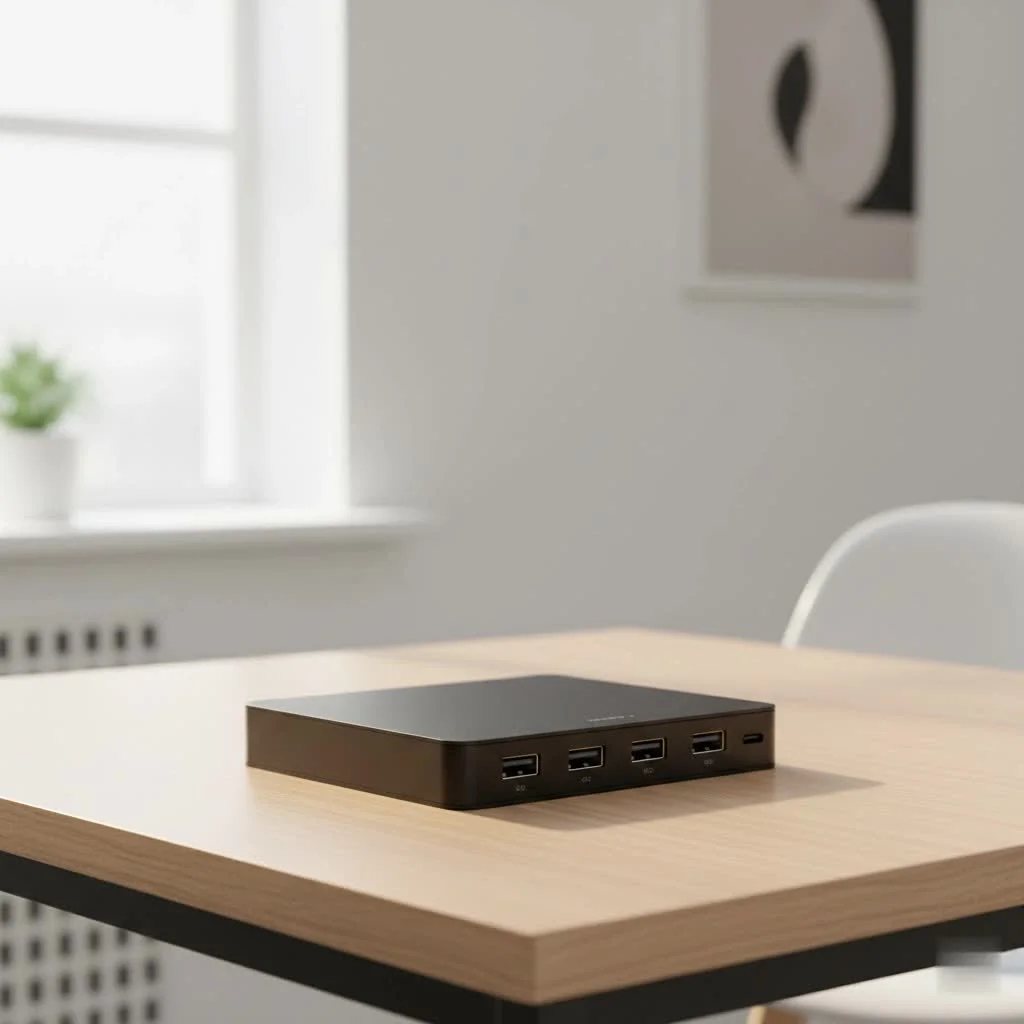
A hub HDMI USB C transforms a single USB-C port on modern laptops, tablets, or smartphones into a versatile connectivity solution, enabling simultaneous connections to external monitors via HDMI, standard USB devices, and power delivery. This essential accessory addresses the limited port availability on sleek, ultra-thin devices, providing a central connection point for peripherals like keyboards, mice, and external storage, effectively turning a minimalist device into a fully-featured workstation.
What Exactly Is a USB C Hub with HDMI?
A USB C hub with an HDMI port is a multiport adapter that acts as a central connection point for your peripherals. It plugs into a single USB-C port on your laptop, tablet, or even smartphone and instantly expands its capabilities. Instead of a single input, you gain access to a variety of essential connections, turning your minimalist device into a fully-featured workstation. For usb hubs buying guides on this site.
While designs vary, most hubs include a standard set of useful ports:
- HDMI Port: The primary reason for getting this type of hub, allowing you to connect to an external monitor, TV, or projector for a larger, secondary display.
- USB-A Ports: Essential for connecting legacy devices like keyboards, mice, flash drives, and external hard drives.
- USB-C Power Delivery (PD) Port: This crucial feature allows you to charge your laptop through the hub, so you don’t lose your only charging port while the hub is connected.
- SD and microSD Card Readers: A must-have for photographers, videographers, and anyone needing to transfer files from a camera.
- Ethernet Port: For those who need a stable, high-speed wired internet connection for gaming, streaming, or reliable video calls.
Decoding the Specs: 4K@30Hz vs. 4K@60Hz
When you shop for a hub HDMI USB C, the most important technical specification you’ll encounter for the video output is the resolution and refresh rate, typically shown as “4K@30Hz” or “4K@60Hz.” Understanding this difference is key to avoiding buyer’s remorse.
In simple terms, Resolution (4K) refers to the clarity and detail of the image (3840 x 2160 pixels), while Refresh Rate (Hz) refers to how many times the image on the screen is updated per second.
When Is 4K@30Hz Enough?
A hub that supports 4K resolution at a 30Hz refresh rate can be a good budget-friendly option for certain tasks. It’s perfectly adequate if your primary activities involve static content.
Choose 4K@30Hz for:
- Displaying presentations in a conference room.
- Working with documents and spreadsheets.
- General web browsing.
- Watching standard movies and videos where fast motion is not prevalent.
However, the lower refresh rate means the motion on screen will be less smooth. For fast-paced cursor movements or quick-scrolling windows, you might notice a slight stutter or lag, which can lead to eye strain for some users over extended periods.
Why You Should Probably Choose 4K@60Hz
|
Our Picks for the Best USB Hub in 2026
As an Amazon Associate I earn from qualifying purchases.
|
||
| Num | Product | Action |
|---|---|---|
| 1 | USB Hub 3.0, 7-Port USB Hub Splitter with Individual On/Off Switches and Lights, 3.2ft/1m Long Cable Compatible with MacBook, Laptop, Surface Pro, PS4, PC, Flash Drive, Mobile HDD |

|
| 2 | USB C Docking Station with M.2 NVMe SSD Enclosure 10Gbps, 9 in 1 USB-C Hub, Type C SSD Slot with 4K@60Hz HDMI, USB 3.2 Gen2, PD100W, SD/TF Card Reader, Laptop Docking Station for Dell/HP/Lenovo/Mac |
|
| 3 | 13 in 1 USB C Docking Station - Dual Monitor, Triple Display, 8 USB C/A Ports, Ethernet, Audio - LIONWEI USB C Hub for MacBook,Dell,HP,Lenovo,Surface |
|
| 4 | Powered USB Hub 10Gbps, intpw 9-Port USB 3.2 Hub, USB C Hub with USB A/USB C 3.2, 4 USB 3.0, 2 PD 45W Charging Ports, 65W Power Adapter and 3.3FT Cable, Aluminum USB Hub for Laptop, iPhone 17/16/15,PC |
|
| 5 | 3-in-1 USB C Splitter, 3 in 1 Type-C Charging Data Cable Data Transmission Decive Charging Adapter Power Charger Equipment for ome Office Use, Fast & Efficient |
|
| 6 | Powered USB Hub, Wenter 11-Port USB Splitter Hub (10 Faster Data Transfer Ports+ 1 Smart Charging Port) with Individual LED On/Off Switches, USB Hub 3.0 Powered with Power Adapter for Mac, PC |
|
| 7 | UGREEN USB 3.0 Hub, 4 Ports USB A Splitter Ultra-Slim USB Expander for Mouse, Keyboard, Flash Drive, U Disk, Printer Compatible with Laptop, Desktop PC, Xbox, PS5, and More |
|
| 8 | Anker Laptop Docking Station Dual Monitor, 8-in-1 USB C Hub, 4K Dual Monitor with 2 HDMI, 1 Gbps Ethernet Hub, 85W Power Delivery, SD Card Reader for MacBook Pro, XPS and More (Charger not Included) |
|
| 9 | P9R PRO USB C Hub Ethernet, 10 in 1 USB Docking Station 10Gbps with 4K@60Hz HDMI, USB C and 2 USB A 3.2, LAN, 2 USB A 2.0, PD 100W, SD/TF Ports, USB to Ethernet Adapter for PC, iPhone 16/15, Mac |
|
| 10 | Anker USB Hub 4 Ports with 5Gbps Data Transfer, Multiple USB 3.0 Hub, USB Splitter for Laptop, Extender for A Port Laptop, PC, Desktop and More [Charging Not Supported](0.7 ft USB-A) |
|
For a significantly better and more modern user experience, a hub supporting 4K at 60Hz is the recommended choice for most people. The 60Hz refresh rate updates the screen 60 times per second—twice as often as 30Hz—resulting in incredibly smooth and fluid motion.
Choose 4K@60Hz for:
- A fluid desktop experience: Everything from moving your mouse cursor to dragging windows feels more responsive and natural.
- Gaming: A 60Hz refresh rate is the baseline for an enjoyable gaming experience, reducing motion blur and input lag.
- Video Editing: Smooth playback and scrubbing through timelines are essential for an efficient workflow.
- Watching Sports or Action Movies: Fast-paced scenes are displayed with clarity and without the distracting judder that can occur at 30Hz.
While slightly more expensive, the investment in a 4K@60Hz hub provides a noticeably superior visual experience that is quickly becoming the standard.
How to Choose the Right Hub HDMI USB C for You
With countless options on the market, selecting the perfect hub can feel overwhelming. Follow this checklist to ensure you get a device that meets your specific needs.
1. Check Your Host Device’s Capabilities
This is the most critical step. For a USB-C port to output video to an HDMI display, it must support DisplayPort Alternate Mode (DP Alt Mode). Not all USB-C ports are created equal; some are designed only for data transfer or charging. Check your laptop’s specifications or manufacturer’s website to confirm it supports video output over USB-C. Without DP Alt Mode, the HDMI port on the hub will not work.
2. Count Your Ports
Think about your daily workflow. What devices do you need to connect simultaneously? Make a list:
- Do you need one USB-A port for a wireless mouse dongle or three for a mouse, keyboard, and flash drive?
- Are you a photographer who needs both SD and microSD card slots?
- Is a reliable wired internet connection critical for your work-from-home setup?
Choose a hub that has the right number and type of ports for your setup, with perhaps one extra for future needs.
3. Power Delivery (PD)
If your laptop has only one or two USB-C ports and uses one for charging, a hub with Power Delivery is non-negotiable. This feature, often labeled “PD,” provides pass-through charging. You plug your laptop’s power adapter into the hub’s USB-C PD port, and the hub then charges your laptop while powering itself and all connected peripherals. Check the wattage—most hubs support up to 100W, which is sufficient for almost all laptops, including the MacBook Pro.
4. Match the Hub to Your Monitor
Your setup is only as strong as its weakest link. There is no benefit to buying a 4K@60Hz hub if your external monitor is only a 1080p model. However, if you plan to upgrade your monitor soon, investing in a more capable hub can be a smart, future-proof decision.
Expert Advice: A Word from a Tech Specialist
We spoke with David Chen, Senior Hardware Analyst at Meeob, to get his take on the most common mistake consumers make.
“The biggest issue we see is customers buying a USB-C hub with HDMI and it not working because their laptop’s USB-C port doesn’t support DP Alt Mode. It’s an easy detail to overlook. Before you buy any hub, take two minutes to confirm your device’s specs. This simple check will save you a lot of frustration and ensure you get the connectivity you’re looking for on the first try.”
Frequently Asked Questions (FAQ)
Q: Can I use a hub to connect to two HDMI monitors?
A: Some advanced hubs and docking stations have two HDMI ports and can support dual-monitor setups. However, compatibility varies. Most standard hubs have a single HDMI port. Base-model MacBooks (with M1, M2, M3 chips) only natively support one external display, regardless of the hub’s capabilities.
Q: Will a USB-C hub with HDMI also transmit audio?
A: Yes, the HDMI standard carries both video and audio signals. When you connect to a TV or a monitor with built-in speakers, the audio should play through it automatically.
Q: Do I need to install any drivers for the hub?
A: The vast majority of USB-C hubs are “plug-and-play.” They work instantly with modern operating systems like Windows, macOS, and ChromeOS without requiring any manual driver installation.
Q: Why does my hub get warm during use?
A: It is normal for a hub to get warm, especially when multiple ports are in use and it’s handling power delivery. The aluminum casing on most hubs is designed to help dissipate this heat. However, if it becomes excessively hot to the touch, you should disconnect it and contact the manufacturer.
Q: Will the hub charge my laptop slower?
A: A small amount of power (around 5-15W) is reserved by the hub to operate its own electronics. A 100W PD hub might deliver about 85-95W to the laptop. For most users, this difference in charging speed is negligible.
Your Gateway to Greater Productivity
A hub HDMI USB C is no longer a niche accessory; it’s an essential tool for unlocking the full potential of your modern laptop. By expanding a single port into a versatile array of connections, it bridges the gap between portability and productivity. By understanding the key differences between refresh rates, assessing your port requirements, and confirming your device’s compatibility, you can confidently choose a hub that will streamline your workflow and simplify your digital life for years to come.
How to Choose the Right USB-C Hub with HDMI
Selecting the perfect USB-C hub with HDMI involves checking device compatibility, assessing port needs, and understanding power delivery specifications to ensure optimal performance.
Verify that your laptop's USB-C port supports DisplayPort Alternate Mode (DP Alt Mode) for video output. Not all USB-C ports are video-capable; consult your device's specifications or manufacturer's website to confirm this crucial feature. Without DP Alt Mode, the HDMI port on the hub will not function.
Evaluate your daily workflow and list all devices you need to connect simultaneously. Consider the number of USB-A ports for peripherals, the need for SD/microSD card readers, and if a wired Ethernet connection is essential. Choose a hub that provides the necessary number and type of ports, plus one extra for future flexibility.
If your laptop charges via USB-C and has limited ports, a hub with Power Delivery (PD) is essential. This feature allows pass-through charging, enabling you to power your laptop through the hub while using other peripherals. Ensure the hub's wattage (e.g., 100W) is sufficient for your laptop's charging requirements.
Align the hub's video output capabilities with your external monitor's resolution and refresh rate. While a 4K@60Hz hub offers a superior experience, it's unnecessary if your monitor only supports 1080p. However, investing in a more capable hub can be a smart, future-proof decision if you plan to upgrade your monitor soon.
Get our weekly buyer guide
Practical specs, not advice. Unsubscribe anytime.
This hub has been great for my new Dell XPS. I was really struggling with the limited port availability, and this solved it. Being able to power my laptop and connect my external hard drive and mouse through one USB-C port is incredibly convenient. The HDMI output works perfectly for my second screen.
I bought one of these for my Samsung tablet, and it’s fantastic. I can now easily connect it to my TV via HDMI for presentations and still use a standard USB stick for files. It’s exactly what I needed to make my tablet more versatile for both work and entertainment. Definitely recommend for anyone with a USB-C only device.
The hub HDMI USB C I got works okay for connecting my keyboard and mouse, but I’ve noticed the power delivery isn’t always consistent with my iPad Pro. Sometimes it charges, sometimes it doesn’t seem to keep up. It’s a bit frustrating when I’m trying to use it for an extended period. Still, it’s better than nothing for expanding my ports.
I’ve been using a hub HDMI USB C for my MacBook Air for a few weeks now, and it’s a game-changer. I can finally connect my external monitor and all my peripherals without needing a bunch of separate dongles. It really does turn my minimalist laptop into a proper workstation, just like the post mentioned. Super happy with this purchase!