A USB C hub for iPad transforms your tablet into a multifunctional workstation by expanding its single USB-C port into multiple connections for peripherals, displays, and storage. The ideal hub depends on your specific needs, with key considerations including port selection (HDMI, USB-A, SD card readers, Ethernet), Power Delivery (PD) passthrough for charging, and form factor (direct-connect, cable-connected, or stand hubs).
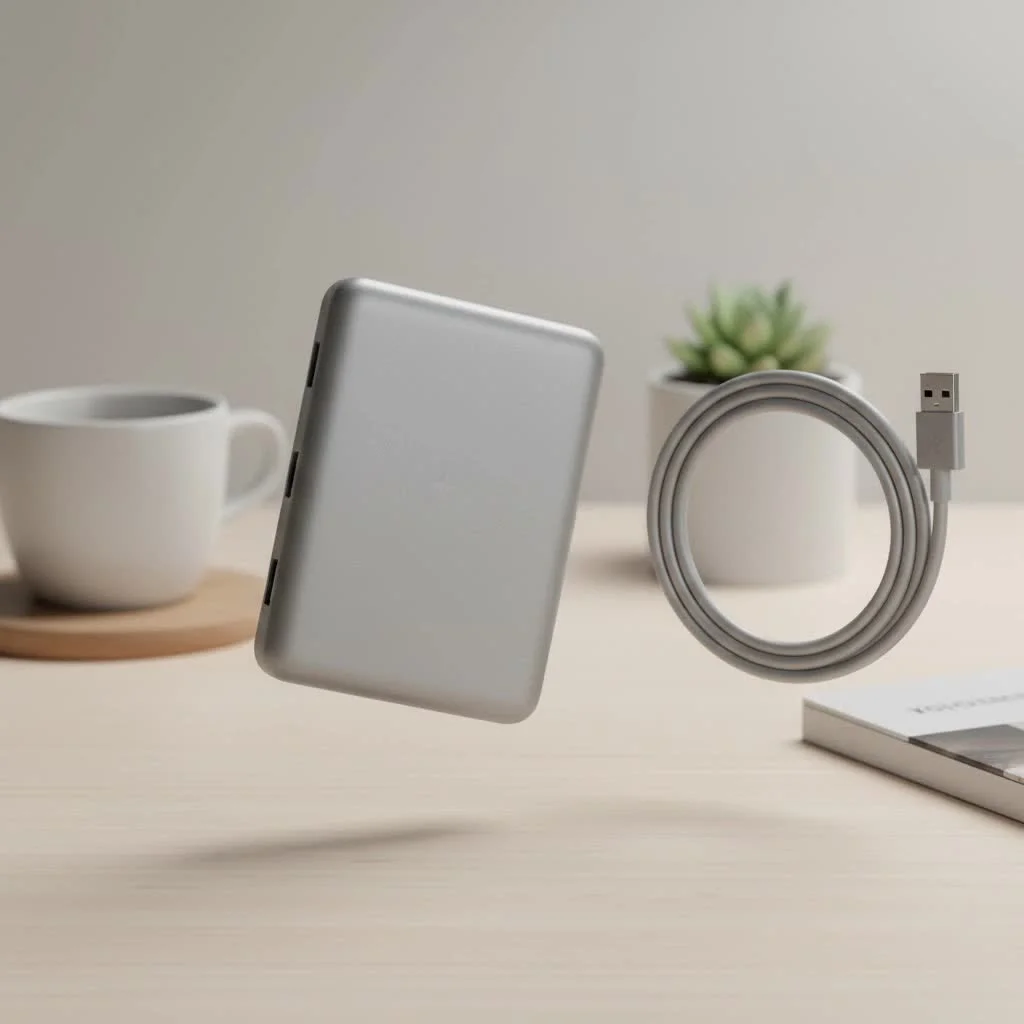
At Meeob, we empower users with knowledge. This guide will walk you through everything you need to know to select the perfect USB C hub that complements your iPad and your workflow, unlocking its true potential. For see our usb hubs recommendations on this site.
Why Do You Need a USB C Hub for Your iPad?
A single USB-C port is great for charging and connecting modern accessories, but it limits simultaneous connections. For example, connecting an external monitor, transferring photos from an SD card, and using a wired keyboard simultaneously is impossible without a hub.
A USB C hub for iPad acts as a multiport adapter, expanding that single port into a versatile array of connections. It allows you to:
- Connect to external displays: Mirror your screen or use Stage Manager on a larger monitor via HDMI or DisplayPort.
- Transfer files easily: Move photos and videos from cameras using built-in SD and microSD card readers.
- Use legacy peripherals: Connect older devices like flash drives, keyboards, and external hard drives with USB-A ports.
- Enjoy stable internet: Plug in directly to a router with an Ethernet port for a faster, more reliable connection.
- Listen to audio: Use your favorite wired headphones with a 3.5mm audio jack.
- Charge while you work: With Power Delivery (PD) passthrough, you can power all your connected accessories while charging your iPad.
Key Features to Look for in an iPad USB C Hub
Not all hubs are created equal. The ideal choice depends entirely on your specific needs. Here are the most important features to consider when making your selection.
Port Selection: Your Gateway to Connectivity
The combination of ports is the most critical factor. Think about your daily tasks and the devices you use most often.
- HDMI/DisplayPort: Essential for connecting to external monitors, TVs, or projectors. For the best experience, look for a hub that supports 4K resolution at a 60Hz refresh rate (HDMI 2.0). A 30Hz refresh rate (HDMI 1.4) is acceptable for presentations but can feel laggy for video editing or gaming.
- USB-A Ports: Don’t underestimate the utility of the classic USB-A port. These are perfect for connecting thumb drives, external SSDs, wired keyboards, mice, and even audio interfaces for music production.
- SD and MicroSD Card Readers: A must-have for photographers and videographers. This feature allows you to offload files from your camera directly to your iPad for on-the-go editing.
- USB-C Power Delivery (PD): This is a non-negotiable feature. A PD port allows you to charge your iPad through the hub, so you don’t have to choose between expanding your connectivity and keeping your battery topped up. Look for hubs that support at least 60W passthrough charging to ensure your iPad and connected devices get enough power.
- 3.5mm Audio Jack: While many have moved to wireless headphones, a dedicated audio jack is invaluable for musicians, podcasters, and anyone who prefers the reliability of a wired connection.
- Ethernet Port: For users who need the fastest and most stable internet connection possible, such as online gamers or streamers, an Ethernet port is a major upgrade.
Design and Form Factor
|
Our Picks for the Best USB Hub in 2026
As an Amazon Associate I earn from qualifying purchases.
|
||
| Num | Product | Action |
|---|---|---|
| 1 | Anker USB Hub 4 Ports with 5Gbps Data Transfer, Multiple USB 3.0 Hub, USB Splitter for Laptop, Extender for A Port Laptop, PC, Desktop and More [Charging Not Supported](0.7 ft USB-A) |
 on Amazon](https://meeob.com/wp-content/plugins/amazon-tables/assets/images/buy.png)
|
| 2 | Powered USB Hub 10Gbps, intpw 9-Port USB 3.2 Hub, USB C Hub with USB A/USB C 3.2, 4 USB 3.0, 2 PD 45W Charging Ports, 65W Power Adapter and 3.3FT Cable, Aluminum USB Hub for Laptop, iPhone 17/16/15,PC |
|
| 3 | UGREEN USB 3.0 Hub, 4 Ports USB A Splitter Ultra-Slim USB Expander for Mouse, Keyboard, Flash Drive, U Disk, Printer Compatible with Laptop, Desktop PC, Xbox, PS5, and More |
|
| 4 | USB C Docking Station with M.2 NVMe SSD Enclosure 10Gbps, 9 in 1 USB-C Hub, Type C SSD Slot with 4K@60Hz HDMI, USB 3.2 Gen2, PD100W, SD/TF Card Reader, Laptop Docking Station for Dell/HP/Lenovo/Mac |
|
| 5 | Powered USB Hub, Wenter 11-Port USB Splitter Hub (10 Faster Data Transfer Ports+ 1 Smart Charging Port) with Individual LED On/Off Switches, USB Hub 3.0 Powered with Power Adapter for Mac, PC |
|
| 6 | Anker Laptop Docking Station Dual Monitor, 8-in-1 USB C Hub, 4K Dual Monitor with 2 HDMI, 1 Gbps Ethernet Hub, 85W Power Delivery, SD Card Reader for MacBook Pro, XPS and More (Charger not Included) |
|
| 7 | 3-in-1 USB C Splitter, 3 in 1 Type-C Charging Data Cable Data Transmission Decive Charging Adapter Power Charger Equipment for ome Office Use, Fast & Efficient |
|
| 8 | P9R PRO USB C Hub Ethernet, 10 in 1 USB Docking Station 10Gbps with 4K@60Hz HDMI, USB C and 2 USB A 3.2, LAN, 2 USB A 2.0, PD 100W, SD/TF Ports, USB to Ethernet Adapter for PC, iPhone 16/15, Mac |
|
| 9 | 13 in 1 USB C Docking Station - Dual Monitor, Triple Display, 8 USB C/A Ports, Ethernet, Audio - LIONWEI USB C Hub for MacBook,Dell,HP,Lenovo,Surface |
|
| 10 | USB Hub 3.0, 7-Port USB Hub Splitter with Individual On/Off Switches and Lights, 3.2ft/1m Long Cable Compatible with MacBook, Laptop, Surface Pro, PS4, PC, Flash Drive, Mobile HDD |
|
How the hub connects to and sits with your iPad can significantly impact usability.
- Direct-Connect Hubs: These small, dongle-like hubs plug directly into the iPad’s USB-C port and sit flush against its side. They are incredibly portable and convenient but may not fit if your iPad is in a thick case.
- Cable-Connected Hubs: These hubs connect via a short, built-in USB-C cable. This design offers more flexibility, works with almost any case, and reduces strain on the iPad’s port.
- Stand Hubs: A newer category combines a stand with a hub. These are perfect for creating a desktop-like setup, propping your iPad at a comfortable viewing angle while providing all the necessary ports.
“When choosing a USB C hub for an iPad, think about your primary workspace. If you’re always on the move, a compact, direct-connect hub is ideal. For a more permanent desk setup, a cabled hub or a stand hub provides better ergonomics and cable management,” notes tech expert Alex Porter.
Build Quality and Materials
A USB C hub for iPad is an investment, so it should be built to last. Aluminum casings are popular because they are durable, lightweight, and excellent at dissipating the heat that hubs naturally generate during use. A well-built hub will feel solid and withstand the rigors of daily travel.
How to Choose the Right USB C Hub for Your Needs
With the key features in mind, let’s identify the perfect hub for different types of users.
For the Creative Professional (Photographers, Videographers, Designers)
Your workflow demands speed and versatility.
- Must-Haves: High-speed SD/microSD card readers (UHS-I or faster), an HDMI port supporting 4K at 60Hz for accurate color grading on an external monitor, and at least one USB-A port for connecting an external SSD.
- Look For: A hub with robust Power Delivery (60W or more) to power your iPad and a fast external drive simultaneously.
For the Student or Mobile Worker
Portability and essential connectivity are key.
- Must-Haves: A lightweight, compact design. Key ports should include HDMI for presentations, USB-A for flash drives, and a 3.5mm audio jack for focused study sessions.
- Look For: A hub that draws minimal power or has efficient passthrough charging to conserve your iPad’s battery life when a power outlet isn’t nearby. The Anker 541 is a great example of a compact yet powerful option.
For the Ultimate Desktop Setup
You want to improve your iPad into a full-fledged computer replacement.
- Must-Haves: The more ports, the better. Look for a hub with multiple USB-A and USB-C ports, an Ethernet port for a rock-solid internet connection, 4K/60Hz HDMI output, and powerful passthrough charging (up to 100W).
- Look For: A stand hub or a larger cabled hub that can serve as the central point for all your peripherals, including a large monitor, mechanical keyboard, mouse, and external storage.
Final Thoughts: Expand Your iPad’s Horizons
Choosing the right USB C hub for your iPad is about identifying your needs and matching them with the right set of features. It’s the single most effective accessory for breaking through the limitations of a single port and transforming your tablet into the powerful, versatile machine it’s meant to be. By focusing on port selection, design, and build quality, you can find a reliable partner for your iPad that will enhance your productivity and creativity for years to come.
Take a moment to assess your daily workflow, consider the devices you use most, and choose a hub that doesn’t just add ports, but adds possibility.
Frequently Asked Questions
What is the main benefit of using a USB C hub with an iPad?
The main benefit of using a USB C hub with an iPad is expanding its single USB-C port into multiple connections. This allows you to simultaneously connect various peripherals like external monitors, SD cards, and USB-A devices, transforming the iPad into a more versatile workstation.
What key features should I look for in an iPad USB C hub?
When selecting an iPad USB C hub, prioritize port selection, including HDMI (preferably 4K/60Hz), USB-A ports, SD/microSD card readers, and an Ethernet port. Additionally, ensure it has USB-C Power Delivery (PD) passthrough, ideally 60W or more, to charge your iPad while using the hub.
Can a USB C hub charge my iPad while I use other accessories?
Yes, a USB C hub with Power Delivery (PD) passthrough can charge your iPad while you use other connected accessories. Look for hubs that support at least 60W passthrough charging to ensure sufficient power for both your iPad and its peripherals.
Are there different types of USB C hub designs for iPads?
Yes, there are three main types of USB C hub designs for iPads: direct-connect hubs that plug directly into the iPad's port, cable-connected hubs that offer more flexibility with a short cable, and stand hubs that combine a stand with integrated ports for a desktop setup.
Which USB C hub is best for creative professionals using an iPad?
Creative professionals should choose a USB C hub with high-speed SD/microSD card readers (UHS-I or faster), an HDMI port supporting 4K at 60Hz for accurate color grading, and at least one USB-A port for external SSDs. A hub with robust Power Delivery (60W or more) is also crucial for powering the iPad and fast external drives simultaneously.
Get our weekly buyer guide
Practical specs, not advice. Unsubscribe anytime.
The information here was pretty solid, especially about the different form factors. I went with a direct-connect hub for my iPad Air, thinking it would be more compact. While it is, I’ve found it can sometimes feel a bit wobbly with multiple things plugged in. It works, but maybe a cable-connected one would have been more stable for my setup. Just something to keep in mind.
This really helped me understand what to look for in a USB C hub for my iPad. I mostly needed something for transferring photos from an SD card and connecting a wired keyboard, and the guide’s emphasis on port selection was spot on. I found a great hub with an SD card reader and a couple of USB-A ports that works perfectly. My iPad finally feels like a proper mini-workstation now.
I’ve been looking for a good USB C hub for my iPad Pro for ages, and this guide really helped me narrow it down. The section on Power Delivery passthrough was super useful, as I definitely need to charge my iPad while using external devices. Ended up getting a cable-connected hub with 100W PD, and it’s been a game-changer for my workflow. Highly recommend considering that feature!
As someone who uses their iPad for a lot of video editing, having an external monitor is crucial. The details about HDMI output and display capabilities in the guide were exactly what I needed. I picked up a hub that supports 4K HDMI and it’s made a huge difference in my productivity. No more squinting at the small screen for color grading!