A 4-port USB hub expands a single USB port on your computer into four usable ports, allowing simultaneous connection of multiple peripherals like keyboards, mice, flash drives, and webcams. This essential accessory enhances productivity and convenience by eliminating the need to constantly swap devices, making it a crucial tool for managing an increasing number of digital devices with limited computer ports.
What Exactly Is a 4-Port USB Hub?
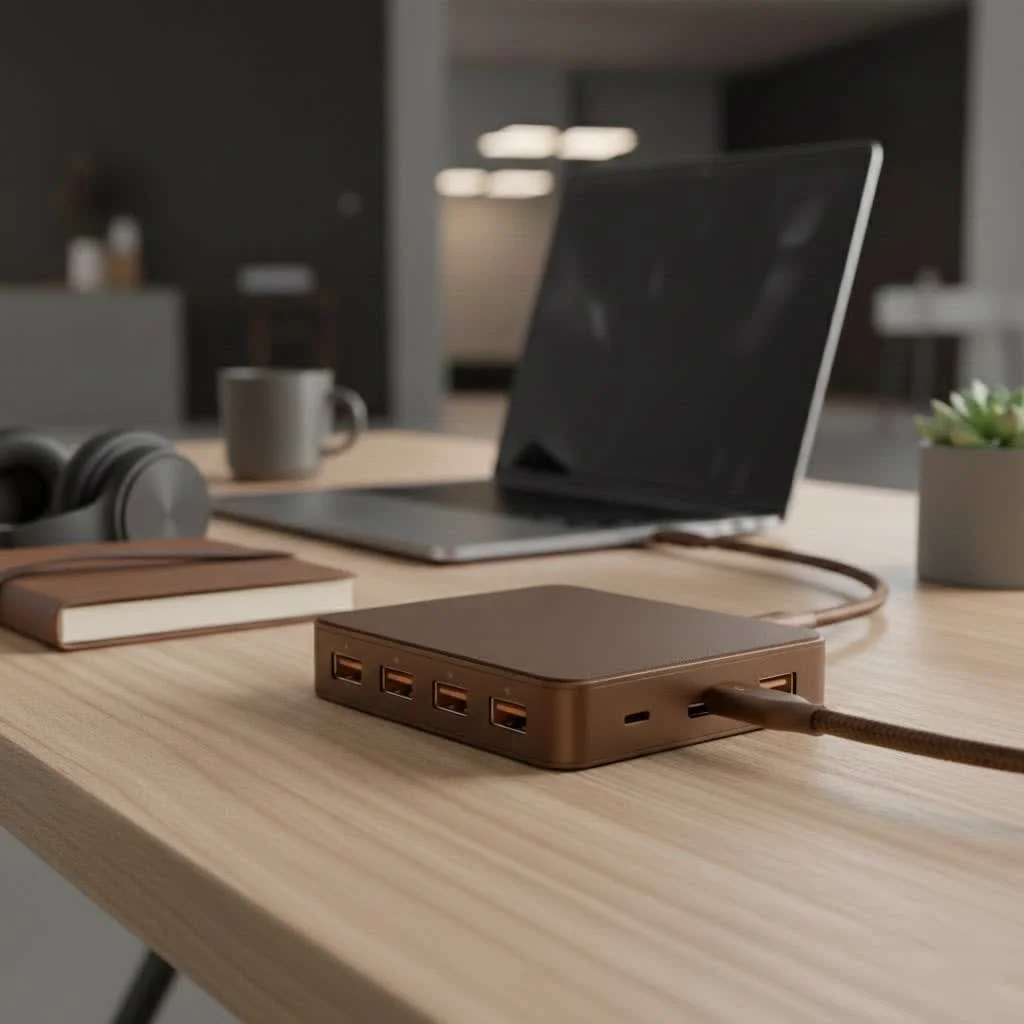
A 4-port USB hub functions like a power strip for your data devices. It’s a compact device that plugs into one USB port on your computer, whether a desktop or laptop, and provides four new, usable USB ports. This enables you to connect multiple peripherals simultaneously, such as a keyboard, mouse, flash drive, and another device, all from a single original port. This gadget is highly effective for decluttering workspaces and streamlining workflows. For complete usb hubs library on this site.
Powered vs. Unpowered: Which Hub Do You Need?
A critical decision when selecting a 4-port USB hub is choosing between a powered or unpowered model. Although they may appear similar, their capabilities differ significantly, and an incorrect choice can lead to frustration.
The Powerhouse: Powered USB Hubs
A powered USB hub includes its own external AC adapter that connects to a wall outlet. This design allows the hub to supply dedicated power to connected devices, rather than drawing all its energy from your computer.
You should choose a powered hub if you plan to connect:
- High-power devices: Peripherals such as external hard drives (HDDs), solid-state drives (SSDs), webcams, and scanners require a stable and substantial power supply to operate correctly.
- Multiple devices at once: If you intend to use all four ports simultaneously, especially with a mix of devices.
- Charging gadgets: Many powered hubs can charge smartphones or tablets more efficiently than unpowered alternatives, although charging isn’t their primary function.
The primary benefit of a powered hub is stability. Each port receives a consistent and dedicated power supply, preventing high-demand peripherals from disconnecting or failing.
The Traveler: Unpowered (Bus-Powered) Hubs
An unpowered USB hub, also known as a bus-powered hub, draws its power directly from the USB port it’s plugged into on your computer. It is lightweight, portable, and does not require an additional wall socket, making it ideal for travel and on-the-go use.
An unpowered hub is the ideal choice for:
- Low-power devices: Peripherals like a mouse, keyboard, flash drive, or game controller require minimal energy.
- Temporary connections: When you only need to quickly plug in a few small devices for a short duration.
- Maximum portability: Its plug-and-play nature and absence of an extra power brick make it easy to carry in a laptop bag.
The limitation is that the total power is shared across all four ports, which can be insufficient for power-hungry gadgets.
Understanding USB Speeds: Don’t Get Stuck in the Slow Lane
|
Our Picks for the Best USB Hub in 2026
As an Amazon Associate I earn from qualifying purchases.
|
||
| Num | Product | Action |
|---|---|---|
| 1 | 13 in 1 USB C Docking Station - Dual Monitor, Triple Display, 8 USB C/A Ports, Ethernet, Audio - LIONWEI USB C Hub for MacBook,Dell,HP,Lenovo,Surface |

|
| 2 | 3-in-1 USB C Splitter, 3 in 1 Type-C Charging Data Cable Data Transmission Decive Charging Adapter Power Charger Equipment for ome Office Use, Fast & Efficient |
|
| 3 | USB C Docking Station with M.2 NVMe SSD Enclosure 10Gbps, 9 in 1 USB-C Hub, Type C SSD Slot with 4K@60Hz HDMI, USB 3.2 Gen2, PD100W, SD/TF Card Reader, Laptop Docking Station for Dell/HP/Lenovo/Mac |
|
| 4 | Powered USB Hub, Wenter 11-Port USB Splitter Hub (10 Faster Data Transfer Ports+ 1 Smart Charging Port) with Individual LED On/Off Switches, USB Hub 3.0 Powered with Power Adapter for Mac, PC |
|
| 5 | Anker Laptop Docking Station Dual Monitor, 8-in-1 USB C Hub, 4K Dual Monitor with 2 HDMI, 1 Gbps Ethernet Hub, 85W Power Delivery, SD Card Reader for MacBook Pro, XPS and More (Charger not Included) |
|
| 6 | P9R PRO USB C Hub Ethernet, 10 in 1 USB Docking Station 10Gbps with 4K@60Hz HDMI, USB C and 2 USB A 3.2, LAN, 2 USB A 2.0, PD 100W, SD/TF Ports, USB to Ethernet Adapter for PC, iPhone 16/15, Mac |
|
| 7 | Powered USB Hub 10Gbps, intpw 9-Port USB 3.2 Hub, USB C Hub with USB A/USB C 3.2, 4 USB 3.0, 2 PD 45W Charging Ports, 65W Power Adapter and 3.3FT Cable, Aluminum USB Hub for Laptop, iPhone 17/16/15,PC |
|
| 8 | UGREEN USB 3.0 Hub, 4 Ports USB A Splitter Ultra-Slim USB Expander for Mouse, Keyboard, Flash Drive, U Disk, Printer Compatible with Laptop, Desktop PC, Xbox, PS5, and More |
|
| 9 | Anker USB Hub 4 Ports with 5Gbps Data Transfer, Multiple USB 3.0 Hub, USB Splitter for Laptop, Extender for A Port Laptop, PC, Desktop and More [Charging Not Supported](0.7 ft USB-A) |
|
| 10 | USB Hub 3.0, 7-Port USB Hub Splitter with Individual On/Off Switches and Lights, 3.2ft/1m Long Cable Compatible with MacBook, Laptop, Surface Pro, PS4, PC, Flash Drive, Mobile HDD |
|
The “USB” in 4-port USB hub refers to a standard that dictates data transfer speed. The two most common types you’ll encounter are USB 2.0 and USB 3.0.
| Feature | USB 2.0 (High-Speed) | USB 3.0 (SuperSpeed) |
|---|---|---|
| Max Transfer Speed | 480 Megabits per second (Mbps) | 5 Gigabits per second (Gbps) |
| Physical Connector | Usually black or white inside | Usually blue inside |
| Best For | Keyboards, mice, printers | External hard drives, SSDs, video transfer |
To illustrate, transferring a full-HD movie could take over 10 minutes on USB 2.0 but less than a minute on USB 3.0. For modern use, a USB 3.0 hub is almost always the recommended choice due to its significantly faster speeds and backward compatibility with USB 2.0 devices. Newer standards like USB 3.1 and hubs utilizing the oval-shaped USB-C connector offer even greater speed and versatility.
As our lead hardware analyst, David Chen, often says, “Choosing the right USB hub isn’t just about adding ports; it’s about matching the technology to your workflow. A photographer transferring large files needs the speed of USB 3.0, while a writer might be perfectly happy with a simple, unpowered hub for their keyboard and mouse.”
How to Choose the Perfect 4-Port USB Hub for You
With the core concepts understood, selecting the right hub is straightforward. Just follow this simple checklist.
- 1. List Your Devices: Identify all peripherals you use daily. If high-power devices like an external hard drive or webcam are on your list, strongly consider a powered hub.
- 2. Check Your Computer’s Ports: Determine if your computer has traditional rectangular USB-A ports or the newer, smaller oval USB-C ports. Select a hub that matches your computer’s native port to avoid needing extra adapters.
- 3. Think About Your Workspace: Consider where the hub will be located. For a permanent desktop setup, a larger, sturdier hub with a longer cable might be ideal. For digital nomads, a compact, bus-powered hub offers maximum portability.
- 4. Cable Length: The cable connecting the hub to your computer is important. A short cable might leave the hub dangling awkwardly, while a long cable can assist with desktop cable management. Choose a length suitable for your setup.
Frequently Asked Questions (FAQ)
What is the main advantage of a 4-port USB hub?The primary advantage of a 4-port USB hub is its ability to instantly multiply your connectivity, allowing you to connect multiple devices like a keyboard, mouse, flash drive, and webcam through a single port on your computer.
Will using a USB hub slow down my devices?A hub itself does not inherently slow down devices, but all connected peripherals share the bandwidth of the single host port. If you use a USB 3.0 hub and connect multiple high-speed devices transferring data simultaneously, you might observe a performance dip, though the impact is negligible for everyday use with a mouse and keyboard.
Can I charge my phone with a 4-port USB hub?Yes, a powered USB hub is significantly better for charging phones as it provides more power. An unpowered hub will charge a phone very slowly, if at all, due to its limited power drawn directly from the computer.
Is a USB 3.0 hub backward compatible with USB 2.0 devices?Absolutely, a USB 3.0 hub is fully backward compatible with USB 2.0 devices. You can plug any USB 2.0 device into a USB 3.0 hub, and it will function perfectly, albeit at the slower USB 2.0 speed. Similarly, plugging a USB 3.0 hub into a USB 2.0 port on your computer will limit the entire hub to USB 2.0 speeds.
Can I connect one USB hub to another?Connecting one USB hub to another, known as “daisy-chaining,” is technically possible but generally not recommended. This practice can lead to power instability and data transfer errors, particularly with unpowered hubs. It is better to acquire a single hub with more ports if additional connectivity is needed.
Your Gateway to a More Organized Digital Life
A 4-port USB hub serves as a command center for your digital peripherals. It eliminates the constant need to swap cables, helps organize your desk, and ensures all your essential tools are connected and ready. By considering your specific devices, power requirements, and desired speed, you can easily select the perfect hub to enhance productivity and simplify your setup. Say goodbye to limited ports and hello to seamless connectivity.
How to Choose the Perfect 4-Port USB Hub
Selecting the right 4-port USB hub involves assessing your device needs, checking computer port types, considering your workspace, and evaluating cable length for optimal setup.
Identify all peripherals you use daily. If high-power devices like an external hard drive, webcam, or scanner are on your list, strongly consider a powered hub to ensure stable operation and sufficient power supply.
Determine if your computer has traditional rectangular USB-A ports or the newer, smaller oval USB-C ports. Select a hub that matches your computeru2019s native port type to avoid needing extra adapters and ensure direct compatibility.
Consider where the hub will be located. For a permanent desktop setup, a larger, sturdier hub with a longer cable might be ideal for better cable management. For digital nomads, a compact, bus-powered hub offers maximum portability and convenience.
The cable connecting the hub to your computer is important for practical use. A short cable might leave the hub dangling awkwardly from a laptop, while a long cable can assist with desktop cable management. Choose a length suitable for your specific setup.
Get our weekly buyer guide
Practical specs, not advice. Unsubscribe anytime.

This 4-port USB hub is exactly what I needed for my laptop. I use it to connect my printer, a flash drive, and my phone for charging, all at the same time. It’s like a power strip for my data devices, just as described. No more juggling USB devices!
It’s a decent hub for the price, and it does exactly what it says by expanding one port into four. My only minor complaint is that the cable is a bit short, which makes placement on my desktop a little awkward. Still, it gets the job done for connecting my webcam and a couple of other low-power devices.
I was constantly swapping out my mouse and keyboard with my flash drive, and it was driving me crazy. This 4-port USB hub has been a lifesaver! It’s so convenient to have everything plugged in at once, and it really does help declutter my desk. Highly recommend for anyone with limited ports.
I needed something to manage all my peripherals without constantly unplugging things. This hub works great for my keyboard, mouse, and external hard drive. It’s compact and doesn’t take up much space, which is a big plus for my small workspace. Definitely streamlines my workflow.