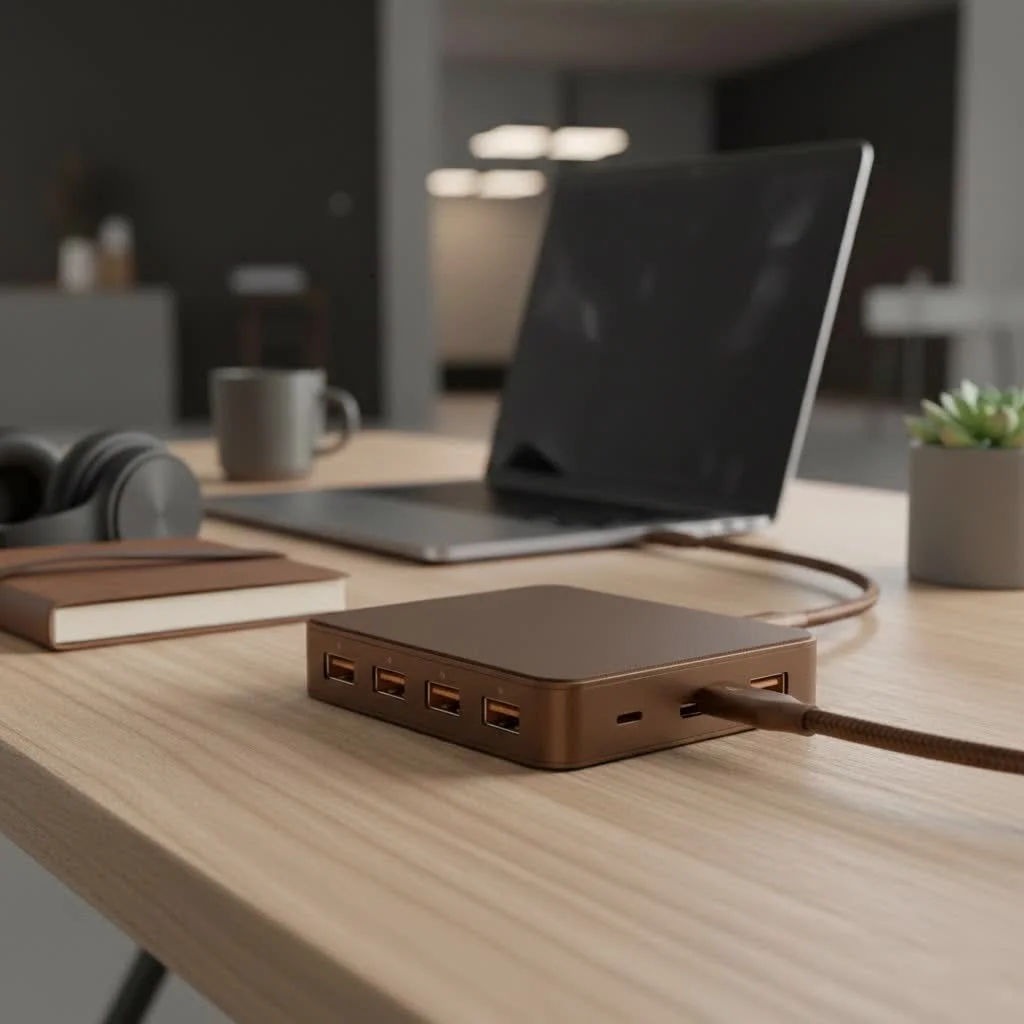
A USB-C charging hub is a multiport adapter that connects to a single USB-C port on a host device, such as a laptop or tablet, providing both data transfer and significant electrical power delivery simultaneously. This dual functionality distinguishes it from standard USB hubs (data only) or charging stations (power only). It acts as a central system, drawing power from an AC outlet to distribute it intelligently while managing external monitors, keyboards, mice, and external drives through one robust connection.
What is a USB-C Charging Hub, Anyway?
At its core, a USB-C charging hub is a multiport adapter that connects to a single USB-C port on your host device, like a laptop or tablet. But it’s far more than a simple port expander. Its defining feature is its ability to both transfer data and deliver significant electrical power to your main device and its connected peripherals simultaneously. This dual functionality is what separates it from a standard USB hub, which primarily handles data, or a charging station, which only handles power. For see our usb hubs recommendations on this site.
Think of it as the central nervous system for your digital life. It draws power from an AC outlet and intelligently distributes it while also managing your external monitor, keyboard, mouse, and external drives—all through one robust connection.
Key Features to Look For in a USB-C Charging Hub
Navigating the market can be tricky, with a sea of technical jargon. Let’s break down the essential features you need to understand to make an informed choice.
Power Delivery (PD): The Fast-Charging major upgrade
Power Delivery, or PD, is a charging protocol that allows for higher power transfer through a USB-C connection. It’s the technology that enables a compact hub to charge a power-hungry laptop.
- Wattage is Key: Hubs come with different power output ratings, typically ranging from 45W to over 100W. To charge your laptop effectively, the hub’s wattage must meet or exceed your laptop’s original charger. A 65W hub will struggle to charge a MacBook Pro that requires a 96W charger.
- Smart Charging: PD technology is intelligent. It communicates with your connected device to deliver the optimal amount of power, preventing overcharging and protecting your battery’s health.
- Pass-Through Charging: Some smaller, portable hubs don’t have their own power brick. Instead, they feature “pass-through” charging, where you plug your laptop’s existing USB-C charger into the hub, and it “passes through” the power to the laptop while running its other ports.
The Right Mix: Number and Type of Ports
The perfect hub is one that matches your specific workflow. Before you buy, take inventory of the devices you use daily.
- USB-A Ports: Still essential for legacy devices like keyboards, mice, flash drives, and webcams. Look for hubs with at least two or three.
- HDMI/DisplayPort: Crucial for connecting to external monitors. An HDMI port is the most common, but some hubs offer DisplayPort for higher resolutions and refresh rates. Check if it supports 4K at 60Hz for a smooth visual experience.
- Ethernet Port: For those who need a stable, high-speed internet connection, a built-in Ethernet port is a non-negotiable feature, offering reliability that Wi-Fi can’t always match.
- SD/MicroSD Card Readers: A lifesaver for photographers, videographers, and content creators who need to transfer files from their cameras quickly.
- Audio Jack: While many devices have removed it, a 3.5mm audio jack on a hub can be incredibly convenient for connecting headphones or speakers.
Data Transfer Speeds
|
Our Picks for the Best USB Hub in 2026
As an Amazon Associate I earn from qualifying purchases.
|
||
| Num | Product | Action |
|---|---|---|
| 1 | Anker USB Hub 4 Ports with 5Gbps Data Transfer, Multiple USB 3.0 Hub, USB Splitter for Laptop, Extender for A Port Laptop, PC, Desktop and More [Charging Not Supported](0.7 ft USB-A) |
 on Amazon](https://meeob.com/wp-content/plugins/amazon-tables/assets/images/buy.png)
|
| 2 | Anker Laptop Docking Station Dual Monitor, 8-in-1 USB C Hub, 4K Dual Monitor with 2 HDMI, 1 Gbps Ethernet Hub, 85W Power Delivery, SD Card Reader for MacBook Pro, XPS and More (Charger not Included) |
|
| 3 | Powered USB Hub 10Gbps, intpw 9-Port USB 3.2 Hub, USB C Hub with USB A/USB C 3.2, 4 USB 3.0, 2 PD 45W Charging Ports, 65W Power Adapter and 3.3FT Cable, Aluminum USB Hub for Laptop, iPhone 17/16/15,PC |
|
| 4 | P9R PRO USB C Hub Ethernet, 10 in 1 USB Docking Station 10Gbps with 4K@60Hz HDMI, USB C and 2 USB A 3.2, LAN, 2 USB A 2.0, PD 100W, SD/TF Ports, USB to Ethernet Adapter for PC, iPhone 16/15, Mac |
|
| 5 | UGREEN USB 3.0 Hub, 4 Ports USB A Splitter Ultra-Slim USB Expander for Mouse, Keyboard, Flash Drive, U Disk, Printer Compatible with Laptop, Desktop PC, Xbox, PS5, and More |
|
| 6 | Powered USB Hub, Wenter 11-Port USB Splitter Hub (10 Faster Data Transfer Ports+ 1 Smart Charging Port) with Individual LED On/Off Switches, USB Hub 3.0 Powered with Power Adapter for Mac, PC |
|
| 7 | USB C Docking Station with M.2 NVMe SSD Enclosure 10Gbps, 9 in 1 USB-C Hub, Type C SSD Slot with 4K@60Hz HDMI, USB 3.2 Gen2, PD100W, SD/TF Card Reader, Laptop Docking Station for Dell/HP/Lenovo/Mac |
|
| 8 | 13 in 1 USB C Docking Station - Dual Monitor, Triple Display, 8 USB C/A Ports, Ethernet, Audio - LIONWEI USB C Hub for MacBook,Dell,HP,Lenovo,Surface |
|
| 9 | 3-in-1 USB C Splitter, 3 in 1 Type-C Charging Data Cable Data Transmission Decive Charging Adapter Power Charger Equipment for ome Office Use, Fast & Efficient |
|
| 10 | USB Hub 3.0, 7-Port USB Hub Splitter with Individual On/Off Switches and Lights, 3.2ft/1m Long Cable Compatible with MacBook, Laptop, Surface Pro, PS4, PC, Flash Drive, Mobile HDD |
|
Not all USB ports are created equal. The speed at which your hub can transfer data is critical, especially when working with large files.
- USB 3.0/3.1 Gen 1: Offers speeds up to 5Gbps. This is great for most everyday tasks.
- USB 3.1 Gen 2/USB 3.2: Doubles the speed to 10Gbps, ideal for transferring large video files or running backups to an external SSD.
- Thunderbolt 3/4: Found on higher-end hubs, these ports offer blazing-fast speeds of 40Gbps, support for dual 4K displays, and other advanced features.
As our lead engineer at Meeob, John Carter, often says, “A hub is only as strong as its weakest link. High-speed ports are useless if the internal controller can’t handle the bandwidth. Always invest in a reputable brand to ensure performance matches the specs.”
Build Quality and Design
A USB-C charging hub will be a central part of your desk setup, so its design and durability matter.
- Materials: Aluminum-bodied hubs generally offer better heat dissipation than plastic ones. Since these devices can get warm under a heavy load, effective cooling is important for longevity and performance.
- Form Factor: Do you need a portable “dongle-style” hub for travel, or a more permanent “desktop-style” docking station with its own power supply? Your use case will determine the best fit.
How to Choose the Right USB-C Charging Hub
Feeling overwhelmed? Follow this simple checklist to find your perfect match.
- Identify Your Main Device: What are you connecting the hub to? A MacBook Pro, a Dell XPS, an iPad Pro? Check its USB-C port specifications. Does it support Power Delivery and DisplayPort Alt Mode (for video)?
- List Your Peripherals: Write down every device you need to connect simultaneously (monitor, keyboard, mouse, external hard drive, SD card, etc.). This will tell you exactly which ports you need.
- Determine Your Power Needs: Check the wattage of the charger that came with your laptop. Your chosen hub must have a Power Delivery output that is at least equal to that number to charge it efficiently.
- Consider Your Workspace: Are you a road warrior who needs something compact and light, or a home-office hero who needs a powerful desktop solution?
- Set a Budget: Hubs range from budget-friendly models to premium docking stations. By defining your needs first, you can find the best value within your price range without paying for features you’ll never use.
Frequently Asked Questions (FAQ)
Can any USB-C charging hub charge my laptop?
No, it must support USB Power Delivery (PD) and have a wattage output that is sufficient for your specific laptop model. Always check your laptop’s power requirements before buying a hub.
Do all the ports on the hub work at full speed simultaneously?
Not always. The total bandwidth and power are shared across all ports. On cheaper hubs, connecting multiple high-demand devices (like an SSD and a 4K monitor) can sometimes result in reduced performance for each. Higher-quality hubs manage this distribution more effectively.
Will a hub with an Ethernet port improve my internet speed?
It will provide a more stable and often faster connection than Wi-Fi, especially in areas with wireless interference. A wired connection via an Ethernet port is the gold standard for reliability in online gaming, video conferencing, and large file downloads.
Is it safe to leave my hub plugged in all the time?
Yes, modern high-quality hubs are designed for continuous use. They have built-in protections against overcurrent, overvoltage, and overheating. However, it’s always a good practice to buy from reputable brands to ensure safety standards are met.
What is the difference between a USB-C hub and a Thunderbolt dock?
While they look similar, Thunderbolt docks offer significantly higher performance. With a 40Gbps bandwidth (compared to 5 or 10Gbps for most USB-C hubs), they can support more demanding setups, such as dual 4K monitors at 60Hz or external GPU enclosures. They are generally more expensive and require a Thunderbolt-compatible port on your computer.
The Final Word on Connectivity
The USB-C charging hub is more than just an accessory; it’s an essential tool for productivity in the modern digital landscape. By consolidating your charging and data needs into a single, powerful device, you can create a more efficient, organized, and versatile workspace. By understanding the core features like Power Delivery, port selection, and data speeds, you are now equipped to choose a hub that not only meets your needs today but also adapts to your workflow for years to come. Take a moment to assess your devices, and get ready to unlock a new level of streamlined connectivity.
Frequently Asked Questions
Can any USB-C charging hub effectively charge my laptop?
No, a USB-C charging hub must support USB Power Delivery (PD) and provide sufficient wattage for your specific laptop model. For instance, a MacBook Pro requiring 96W needs a hub with at least that output to charge efficiently.
Do all ports on a USB-C hub operate at full speed simultaneously?
Not always; the total bandwidth and power are shared across all ports. On some hubs, connecting multiple high-demand devices like an external SSD and a 4K monitor can reduce individual port performance. Higher-quality hubs manage this distribution more effectively.
Will a USB-C hub with an Ethernet port improve my internet connection?
Yes, an Ethernet port on a USB-C hub provides a more stable and often faster internet connection than Wi-Fi, especially in areas with wireless interference. A wired connection is considered the gold standard for reliability in activities like online gaming and video conferencing.
Is it safe to keep a USB-C charging hub plugged in constantly?
Yes, modern high-quality USB-C hubs are designed for continuous use and include built-in protections against overcurrent, overvoltage, and overheating. It is always recommended to purchase from reputable brands to ensure these safety standards are met.
What is the key difference between a USB-C hub and a Thunderbolt dock?
Thunderbolt docks offer significantly higher performance with 40Gbps bandwidth, compared to the 5 or 10Gbps of most USB-C hubs. This allows Thunderbolt docks to support more demanding setups, such as dual 4K monitors at 60Hz or external GPU enclosures, but they are generally more expensive and require a Thunderbolt-compatible port.
Choose the Right USB-C Charging Hub
Follow these steps to select a USB-C charging hub that perfectly matches your device and workflow needs.
Determine the primary device you'll connect the hub to, such as a MacBook Pro or iPad Pro. Check its USB-C port specifications to confirm support for Power Delivery and DisplayPort Alt Mode for video output.
Make a comprehensive list of all devices you need to connect simultaneously, including monitors, keyboards, mice, external hard drives, and SD cards. This inventory will dictate the exact types and number of ports required on your hub.
Check the wattage of your laptop's original charger. The USB-C charging hub you choose must have a Power Delivery output equal to or greater than this wattage to ensure efficient charging of your main device.
Decide if you need a compact, portable 'dongle-style' hub for travel or a more robust 'desktop-style' docking station with its own power supply for a permanent setup. Your typical use case will guide the best form factor.
USB-C hubs vary widely in price, from budget-friendly options to premium docking stations. By first defining your specific needs, you can find the best value within your price range without overpaying for unnecessary features.
Get our weekly buyer guide
Practical specs, not advice. Unsubscribe anytime.
This was super helpful in explaining how these hubs draw power from an AC outlet to distribute it intelligently. I picked up a hub based on the recommendations, and it’s working great for my external monitor and keyboard. I just wish it had one more USB-A port, but that’s a minor quibble for how well it handles everything else.
Finally, a clear explanation of how these hubs provide both data transfer and significant electrical power delivery simultaneously! I was always confused by the ‘data only’ vs ‘power only’ options. My new hub connects perfectly to my laptop’s single USB-C port and handles all my external drives and mice without a hitch. Highly recommend understanding this distinction before buying.
I’ve been looking for a solution to declutter my desk, and this guide really helped me understand the difference between a regular hub and a USB-C charging hub. The ability to power my laptop and connect all my peripherals through one robust connection is a game-changer. My setup is so much cleaner now, and everything charges efficiently.
I got a USB-C charging hub for my tablet, hoping to use it as a central system for all my accessories. While it does a good job with data transfer, the power delivery to my tablet isn’t as consistent as I’d hoped, especially when I have multiple external drives connected. It’s okay, but not quite the ‘ultimate’ solution for my specific needs.