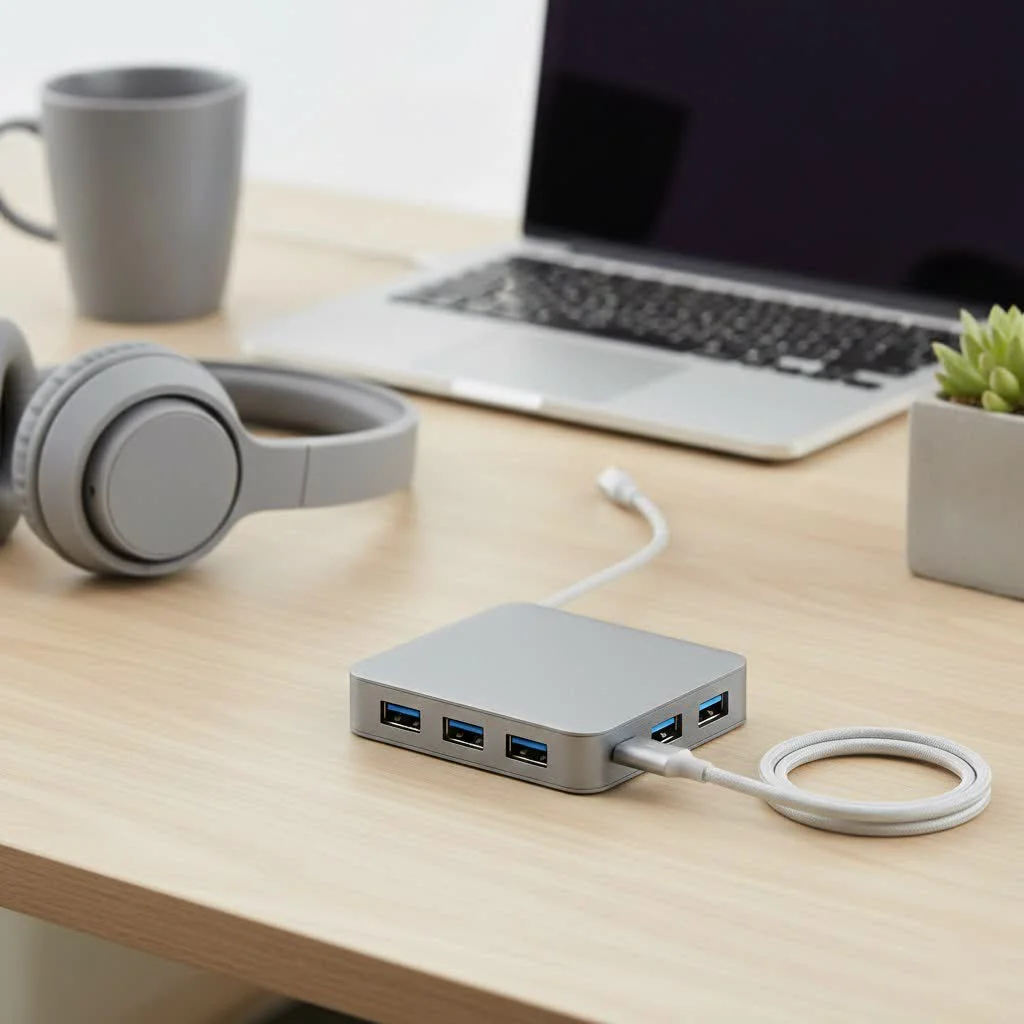
A hub USB HDMI transforms a single USB-C port on modern laptops into a versatile workstation, providing essential connectivity for external monitors, peripherals, and power. These compact devices typically include an HDMI port for video output, USB-A ports for legacy devices, and often USB-C Power Delivery (PD) to charge the laptop simultaneously. For example, a hub can connect a 4K monitor, a mouse, and charge a laptop all through one USB-C port.
What Exactly Is a USB HDMI Hub?
Think of a USB HDMI hub as a power strip for your data and video. It takes a single USB-C or USB-A port on your computer and multiplies its capabilities. The primary feature, as the name suggests, is an HDMI port that allows you to connect an external monitor, TV, or projector. However, most hubs don’t stop there. They are typically multiport adapters that can also include a variety of other essential connections, such as: For compare top usb hubs on this site.
- USB-A ports: For connecting legacy devices like keyboards, mice, and external hard drives.
- SD and microSD card readers: A must-have for photographers and videographers.
- Ethernet port: For a stable, wired internet connection when Wi-Fi is unreliable.
- USB-C Power Delivery (PD): To charge your laptop through the hub, so you don’t lose your only charging port.
How to Choose the Perfect Hub USB HDMI for Your Needs
With so many options on the market, selecting the right hub can feel overwhelming. Let’s break down the critical features to consider to ensure you get a device that perfectly matches your workflow.
1. Master the HDMI Port: 4K@30Hz vs. 4K@60Hz
The HDMI port is the star of the show, but not all are created equal. The main specification to watch for is the refresh rate at 4K resolution.
- 4K@30Hz: This is a standard feature on many budget-friendly hubs. It’s perfectly adequate for watching videos, giving presentations, or general productivity tasks. However, at this refresh rate, mouse movements and window dragging may feel slightly choppy.
- 4K@60Hz: This provides a much smoother, more fluid experience. The doubled refresh rate makes everything from gaming to video editing feel more responsive and natural. If you work with motion-heavy content or simply want the best visual experience, investing in a 4K@60Hz hub is well worth it.
“Many users don’t realize the impact of refresh rate until they see 30Hz and 60Hz side-by-side,” notes David Chen, a senior hardware analyst. “For creative professionals and anyone who spends hours in front of an external display, a hub that supports 4K@60Hz is an essential tool for reducing eye strain and improving productivity.”
2. Don’t Overlook Power Delivery (PD)
|
Our Picks for the Best USB Hub in 2026
As an Amazon Associate I earn from qualifying purchases.
|
||
| Num | Product | Action |
|---|---|---|
| 1 | Powered USB Hub 10Gbps, intpw 9-Port USB 3.2 Hub, USB C Hub with USB A/USB C 3.2, 4 USB 3.0, 2 PD 45W Charging Ports, 65W Power Adapter and 3.3FT Cable, Aluminum USB Hub for Laptop, iPhone 17/16/15,PC |

|
| 2 | Anker Laptop Docking Station Dual Monitor, 8-in-1 USB C Hub, 4K Dual Monitor with 2 HDMI, 1 Gbps Ethernet Hub, 85W Power Delivery, SD Card Reader for MacBook Pro, XPS and More (Charger not Included) |
|
| 3 | P9R PRO USB C Hub Ethernet, 10 in 1 USB Docking Station 10Gbps with 4K@60Hz HDMI, USB C and 2 USB A 3.2, LAN, 2 USB A 2.0, PD 100W, SD/TF Ports, USB to Ethernet Adapter for PC, iPhone 16/15, Mac |
|
| 4 | USB Hub 3.0, 7-Port USB Hub Splitter with Individual On/Off Switches and Lights, 3.2ft/1m Long Cable Compatible with MacBook, Laptop, Surface Pro, PS4, PC, Flash Drive, Mobile HDD |
|
| 5 | Powered USB Hub, Wenter 11-Port USB Splitter Hub (10 Faster Data Transfer Ports+ 1 Smart Charging Port) with Individual LED On/Off Switches, USB Hub 3.0 Powered with Power Adapter for Mac, PC |
|
| 6 | 13 in 1 USB C Docking Station - Dual Monitor, Triple Display, 8 USB C/A Ports, Ethernet, Audio - LIONWEI USB C Hub for MacBook,Dell,HP,Lenovo,Surface |
|
| 7 | USB C Docking Station with M.2 NVMe SSD Enclosure 10Gbps, 9 in 1 USB-C Hub, Type C SSD Slot with 4K@60Hz HDMI, USB 3.2 Gen2, PD100W, SD/TF Card Reader, Laptop Docking Station for Dell/HP/Lenovo/Mac |
|
| 8 | Anker USB Hub 4 Ports with 5Gbps Data Transfer, Multiple USB 3.0 Hub, USB Splitter for Laptop, Extender for A Port Laptop, PC, Desktop and More [Charging Not Supported](0.7 ft USB-A) |
|
| 9 | 3-in-1 USB C Splitter, 3 in 1 Type-C Charging Data Cable Data Transmission Decive Charging Adapter Power Charger Equipment for ome Office Use, Fast & Efficient |
|
| 10 | UGREEN USB 3.0 Hub, 4 Ports USB A Splitter Ultra-Slim USB Expander for Mouse, Keyboard, Flash Drive, U Disk, Printer Compatible with Laptop, Desktop PC, Xbox, PS5, and More |
|
Power Delivery is a non-negotiable feature for most laptop users. A hub with a USB-C PD input port allows you to connect your laptop’s charger to the hub, which then passes power through to your computer. This is crucial because it means you can use the hub for display and accessories while simultaneously charging your device, all from a single USB-C port. When checking specifications, ensure the hub’s power output (measured in watts) is sufficient for your laptop. Most ultrabooks require at least 65W for effective charging.
3. Audit Your Accessories: The Ports You Really Need
Take a moment to inventory the devices you use daily. This will help you decide on the right mix of ports.
- USB-A: How many older devices (mice, keyboards, flash drives) do you need to connect at once? Look for at least two USB-A ports. Pay attention to the speed—USB 3.0 (often colored blue) offers significantly faster transfer speeds (5Gbps) than USB 2.0, which is critical for external drives.
- Ethernet: If you’re a gamer or frequently work in areas with spotty Wi-Fi, a hub with a Gigabit Ethernet port is a lifesaver.
- Card Readers: For photographers, a hub with built-in SD and/or microSD card slots streamlines the process of transferring files without needing a separate dongle.
4. Consider Build Quality and Portability
Your hub will likely be a constant travel companion, so durability matters. Hubs with aluminum casings tend to be more robust and better at dissipating heat than their plastic counterparts. Also, consider the form factor. Some hubs are compact dongles with a short, built-in cable, making them perfect for throwing in a bag. Others are larger, desktop-style docks with more ports and sometimes their own power supply for supporting more high-powered devices.
Frequently Asked Questions (FAQ)
What’s the difference between a USB hub and a dock?
A USB hub is typically smaller, bus-powered (drawing power from the laptop), and designed for portability. A docking station is a larger, stationary device that usually has its own external power supply, allowing it to support more high-powered peripherals and sometimes multiple displays.
Will a hub USB HDMI work with my MacBook/Windows laptop?
Generally, yes. If your laptop has a USB-C port that supports “DisplayPort Alternate Mode” (DP Alt Mode) or Thunderbolt 3/4, it can output video through a USB-C hub. Most modern laptops from manufacturers like Apple, Dell, HP, and Lenovo include this functionality, but it’s always best to check your device’s specifications.
Can I connect multiple monitors with one hub?
This depends on the hub and your laptop. Many standard hubs only support a single external display. More advanced hubs and docking stations, especially those using Thunderbolt technology, can drive two or more monitors. However, be aware of laptop limitations—for example, base-model Apple MacBooks with M1/M2/M3 chips natively support only one external monitor.
Why is my HDMI port on the hub not working?
There are a few common reasons. First, ensure your laptop’s USB-C port supports video output (DP Alt Mode). Second, try a different, high-quality HDMI cable. Finally, make sure all connections are secure and check if your display needs to have its input source manually selected.
Your Gateway to Expanded Productivity
A hub USB HDMI is more than just an accessory; it’s a productivity multiplier. By carefully selecting a hub that matches your needs for display quality, power, and peripheral connectivity, you can break free from the limitations of modern laptops. You can create a clean, powerful, and versatile workspace with a single cable, whether you’re at your desk, in a conference room, or working from a coffee shop.
How to Choose the Perfect Hub USB HDMI
Selecting the right USB HDMI hub involves evaluating key features like HDMI refresh rate, power delivery, and the types of peripheral ports you need.
Determine if you need 4K@30Hz for basic tasks or 4K@60Hz for smoother visuals and motion-heavy content. The higher refresh rate provides a more responsive experience for gaming and video editing.
Ensure the hub includes a USB-C PD input port to charge your laptop through the hub. Check that the hub's power output, measured in watts, is sufficient for your laptop, with most ultrabooks requiring at least 65W.
Inventory your daily accessories to decide on the necessary mix of USB-A, Ethernet, and card reader ports. Look for USB 3.0 ports for faster data transfer speeds (5Gbps) with external drives.
Opt for hubs with aluminum casings for better durability and heat dissipation. Choose between compact dongle-style hubs for travel or larger desktop docks for more extensive connectivity needs.
Get our weekly buyer guide
Practical specs, not advice. Unsubscribe anytime.
Finally, a solution for my limited port situation! My work laptop only has two USB-C ports, and this hub USB HDMI has transformed it into a full workstation. I can run two external monitors (one via HDMI, one via another adapter), plus all my peripherals. The build quality feels solid, and it’s super compact, which is great for travel. Definitely a must-have for modern laptops.
This hub has been great for expanding my laptop’s capabilities. The HDMI output works perfectly for my second monitor, and I appreciate having the extra USB-A ports for my mouse and keyboard. The Power Delivery feature is a lifesaver, so I don’t need a separate charger. My only minor gripe is that it gets a little warm after extended use, but nothing concerning.
I got one of these USB HDMI hubs to connect my older printer and a projector to my new ultrabook. While the HDMI port works fine for presentations, I’ve noticed some lag when transferring large files through the USB-A ports. It’s not terrible, but it’s definitely slower than plugging directly into the laptop. It’s okay for basic use, but I was hoping for better data transfer speeds.
I’ve been using a hub USB HDMI for my MacBook Pro for a few weeks now, and it’s a game-changer. Being able to connect my 4K monitor, external hard drive, and still charge my laptop all through one USB-C port is incredibly convenient. It really cleans up my desk setup and makes switching between home and office so much easier. Highly recommend for anyone with a newer laptop!