Choosing the perfect USB C hub involves understanding your device’s capabilities and your daily connectivity needs. A USB C hub is a compact adapter that expands a single USB-C port into multiple connections, such as HDMI, USB-A, and SD card readers, providing essential connectivity for modern, minimalist laptops.
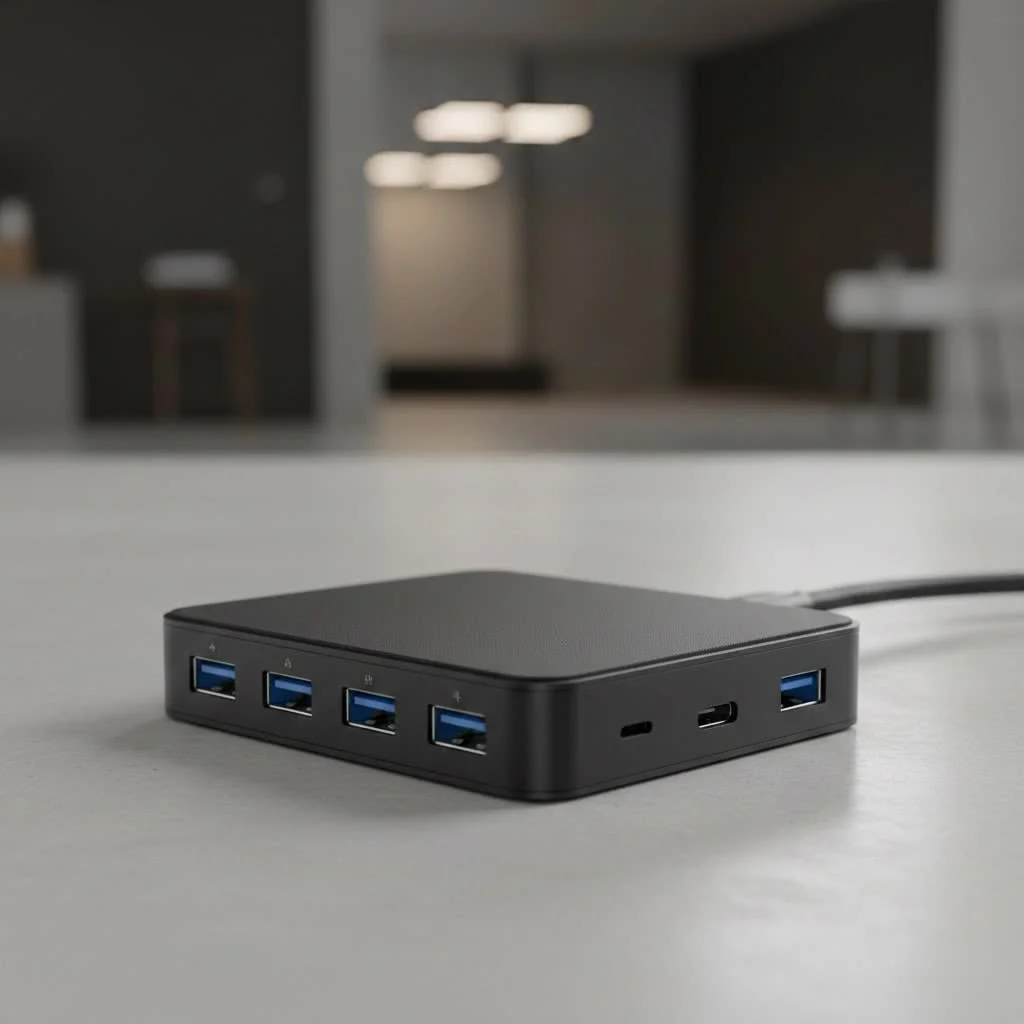
As a specialist with over a decade of experience at Meeob, I’ve seen how the right hub can transform a workflow. This guide will demystify the process, breaking down everything you need to know to find the USB C hub that’s a perfect match for your setup.
What Exactly Is a USB C Hub?
Think of a USB C hub as a powerful multitool for your laptop or tablet. It’s a compact adapter that plugs into one of your device’s USB-C ports and instantly expands it into a variety of different connections. Suddenly, that one port can become an HDMI output, several traditional USB-A ports, an SD card reader, and more, all at the same time. It’s the bridge between your modern, slim device and the world of peripherals you rely on.
Why You Absolutely Need a USB C Hub
The move to USB-C is about creating a universal standard, but until all our devices catch up, a hub is essential. It’s about more than just plugging things in; it’s about efficiency and convenience.
- Expand Your Connectivity: The most obvious benefit is the sheer number of devices you can connect. Stop swapping cables and connect your keyboard, mouse, external hard drive, and monitor simultaneously.
- Create a Single-Cable Workstation: With a feature called Power Delivery (more on that later), you can charge your laptop through the hub. This means you can connect your charger to the hub, plug the hub into your laptop, and have all your peripherals and power running through one single USB-C cable.
- Portability is Key: Unlike bulky docking stations, USB C hubs are designed to be lightweight and portable. You can toss one in your bag and have a full desktop setup ready to go, whether you’re at home, in the office, or at a coffee shop.
Decoding the Ports: A Guide to What You Need
The magic of a USB C hub lies in its ports. But not all hubs are created equal. Here’s a breakdown of the most common ports and why you might need them.
HDMI/DisplayPort: For External Monitors
This is a must-have for anyone who wants to connect their laptop to a larger screen. An HDMI or DisplayPort connection lets you extend or mirror your display to a monitor or TV.
Pro Tip: Look closely at the specifications. For a smooth, crisp image, you’ll want a hub that supports 4K resolution at a 60Hz refresh rate. Cheaper hubs might only offer 30Hz, which can result in a choppy, laggy experience, especially with video or gaming.
USB-A Ports: Connecting Your Legacy Devices
|
Our Picks for the Best USB Hub in 2026
As an Amazon Associate I earn from qualifying purchases.
|
||
| Num | Product | Action |
|---|---|---|
| 1 | Anker USB Hub 4 Ports with 5Gbps Data Transfer, Multiple USB 3.0 Hub, USB Splitter for Laptop, Extender for A Port Laptop, PC, Desktop and More [Charging Not Supported](0.7 ft USB-A) |
 on Amazon](https://meeob.com/wp-content/plugins/amazon-tables/assets/images/buy.png)
|
| 2 | USB Hub 3.0, 7-Port USB Hub Splitter with Individual On/Off Switches and Lights, 3.2ft/1m Long Cable Compatible with MacBook, Laptop, Surface Pro, PS4, PC, Flash Drive, Mobile HDD |
|
| 3 | UGREEN USB 3.0 Hub, 4 Ports USB A Splitter Ultra-Slim USB Expander for Mouse, Keyboard, Flash Drive, U Disk, Printer Compatible with Laptop, Desktop PC, Xbox, PS5, and More |
|
| 4 | USB C Docking Station with M.2 NVMe SSD Enclosure 10Gbps, 9 in 1 USB-C Hub, Type C SSD Slot with 4K@60Hz HDMI, USB 3.2 Gen2, PD100W, SD/TF Card Reader, Laptop Docking Station for Dell/HP/Lenovo/Mac |
|
| 5 | 13 in 1 USB C Docking Station - Dual Monitor, Triple Display, 8 USB C/A Ports, Ethernet, Audio - LIONWEI USB C Hub for MacBook,Dell,HP,Lenovo,Surface |
|
| 6 | P9R PRO USB C Hub Ethernet, 10 in 1 USB Docking Station 10Gbps with 4K@60Hz HDMI, USB C and 2 USB A 3.2, LAN, 2 USB A 2.0, PD 100W, SD/TF Ports, USB to Ethernet Adapter for PC, iPhone 16/15, Mac |
|
| 7 | Powered USB Hub 10Gbps, intpw 9-Port USB 3.2 Hub, USB C Hub with USB A/USB C 3.2, 4 USB 3.0, 2 PD 45W Charging Ports, 65W Power Adapter and 3.3FT Cable, Aluminum USB Hub for Laptop, iPhone 17/16/15,PC |
|
| 8 | Anker Laptop Docking Station Dual Monitor, 8-in-1 USB C Hub, 4K Dual Monitor with 2 HDMI, 1 Gbps Ethernet Hub, 85W Power Delivery, SD Card Reader for MacBook Pro, XPS and More (Charger not Included) |
|
| 9 | Powered USB Hub, Wenter 11-Port USB Splitter Hub (10 Faster Data Transfer Ports+ 1 Smart Charging Port) with Individual LED On/Off Switches, USB Hub 3.0 Powered with Power Adapter for Mac, PC |
|
| 10 | 3-in-1 USB C Splitter, 3 in 1 Type-C Charging Data Cable Data Transmission Decive Charging Adapter Power Charger Equipment for ome Office Use, Fast & Efficient |
|
These are the rectangular USB ports you’ve known for years. They are essential for connecting countless devices like:
- Wired keyboards and mice
- External hard drives and flash drives
- Webcams
- Printers
Most hubs come with at least two USB-A ports. Consider how many of these devices you use daily to determine how many you’ll need.
SD/MicroSD Card Readers: A Creator’s Best Friend
For photographers, videographers, and content creators, an integrated SD and/or microSD card reader is a major upgrade. It eliminates the need for a separate card reader, allowing you to transfer photos and videos directly from your camera’s memory card to your laptop.
Ethernet Port: For Stable, Wired Internet
While Wi-Fi is convenient, a wired Ethernet connection is unbeatable for speed and stability. If you’re a gamer, a streamer, or someone who frequently transfers large files online, an Ethernet port on your USB C hub is non-negotiable. It provides a reliable connection that Wi-Fi can’t always guarantee.
USB-C Power Delivery (PD): Charge While You Work
Power Delivery is one of the most crucial features to look for. A USB-C port with PD allows for “pass-through” charging. This means you can plug your laptop’s USB-C power adapter into the hub, and the hub will charge your laptop while still powering all the other connected devices.
“Pay close attention to the wattage,” advises tech hardware specialist Alex Carter. “Your hub will use some power for its own operation, usually around 15W. So, if your laptop needs 65W to charge, you’ll want a hub that can handle at least 85W of power input to ensure your device charges at a proper speed.”
Key Factors to Consider Before You Buy
Choosing the right hub comes down to understanding your own needs.
1. Your Primary Devices
The hub you need for a powerful MacBook Pro will be different from one for a more basic Chromebook or an iPad. Check your device’s specifications to see what its USB-C port supports. Does it support video output (DisplayPort Alt Mode)? Does it support Power Delivery? Knowing your device’s capabilities is the first step.
2. Your Specific Needs
Are you a graphic designer who needs 4K video output and fast SD card transfers? Or are you a student who just needs to connect a mouse and a flash drive? Make a list of the devices you use every day. This will give you a clear picture of the number and type of ports you need.
3. Data Transfer Speeds
Not all USB ports are the same. The speed, measured in gigabits per second (Gbps), determines how quickly you can transfer files.
- USB 2.0 (480 Mbps): Fine for keyboards and mice, but very slow for file transfers.
- USB 3.0/3.2 Gen 1 (5 Gbps): The standard for modern accessories. Good for external hard drives.
- USB 3.2 Gen 2 (10 Gbps): Ideal for high-speed external SSDs.
USB C Hub vs. Docking Station: What’s the Difference?
A common point of confusion is the difference between a USB C hub and a docking station. The primary difference is scale and power.
- USB C Hubs are designed for portability. They are bus-powered (drawing power from the laptop) and offer a solid range of essential ports. They are perfect for most everyday users and for those who work on the go.
- Docking Stations are larger, less portable, and often have their own dedicated power supply. They typically offer more ports, can drive multiple high-resolution monitors, and are designed for a permanent or semi-permanent desk setup.
For most people, a high-quality USB C hub offers the perfect balance of functionality and flexibility.
Frequently Asked Questions (FAQ)
Do USB C hubs get hot?
Yes, it’s normal for a USB C hub to get warm during use, especially when multiple ports are active and it’s handling Power Delivery. It’s processing a lot of data and power. However, it should not become dangerously hot to the touch. If it does, unplug it immediately.
Can a cheap USB C hub damage my laptop?
A poorly made hub can potentially cause issues. It’s important to buy from a reputable brand that follows USB-IF standards. A quality hub will have safeguards to protect against over-current, over-voltage, and short-circuiting, keeping your expensive devices safe.
Do all USB C ports support video output?
No, and this is a critical point. A USB-C port must support “DisplayPort Alternate Mode” (DP Alt Mode) to send a video signal to a monitor. Always check your laptop’s specifications before buying a hub for video output.
Your Perfect Connectivity Companion
Choosing a USB C hub doesn’t have to be complicated. By starting with your device’s capabilities and making a simple list of your daily needs, you can easily narrow down the options. Focus on the essentials: the right number and type of ports, sufficient Power Delivery for your laptop, and the video output resolution you require. The right hub isn’t just an accessory; it’s a powerful tool that unleashes the full potential of your laptop, streamlining your workflow and clearing the clutter from your desk.
Get our weekly buyer guide
Practical specs, not advice. Unsubscribe anytime.

I’ve been looking for a good USB C hub for my new MacBook Air, and this guide was super helpful. I ended up getting one with an HDMI port and a couple of USB-A ports, which is exactly what I needed for my external monitor and old peripherals. It’s made such a difference in decluttering my desk and making my setup much more functional. Highly recommend figuring out your specific needs before buying!
As someone who travels a lot for work, having a compact adapter that expands my laptop’s capabilities is crucial. I picked up a hub with multiple USB-A ports and a power delivery pass-through, and it’s been a game-changer. I can charge my laptop and connect all my accessories with just one port. It truly is a powerful multitool for my setup.
This hub really helped me expand the connectivity on my minimalist laptop. I appreciate having the SD card reader built-in, as I transfer photos frequently and my laptop doesn’t have one. The only minor issue is that it gets a little warm when I have multiple things plugged in and running for extended periods, but it hasn’t affected performance. Overall, a solid purchase for expanding a single USB-C port.
I bought a USB C hub primarily for the Ethernet port, as my Wi-Fi can be a bit spotty. While the Ethernet works great, I’ve noticed that the USB-A ports are a bit tight, and it takes some effort to plug in my flash drives. It’s not a dealbreaker, but it’s a slight annoyance. For the price, it does what I need it to do, but I wish the other ports were smoother.