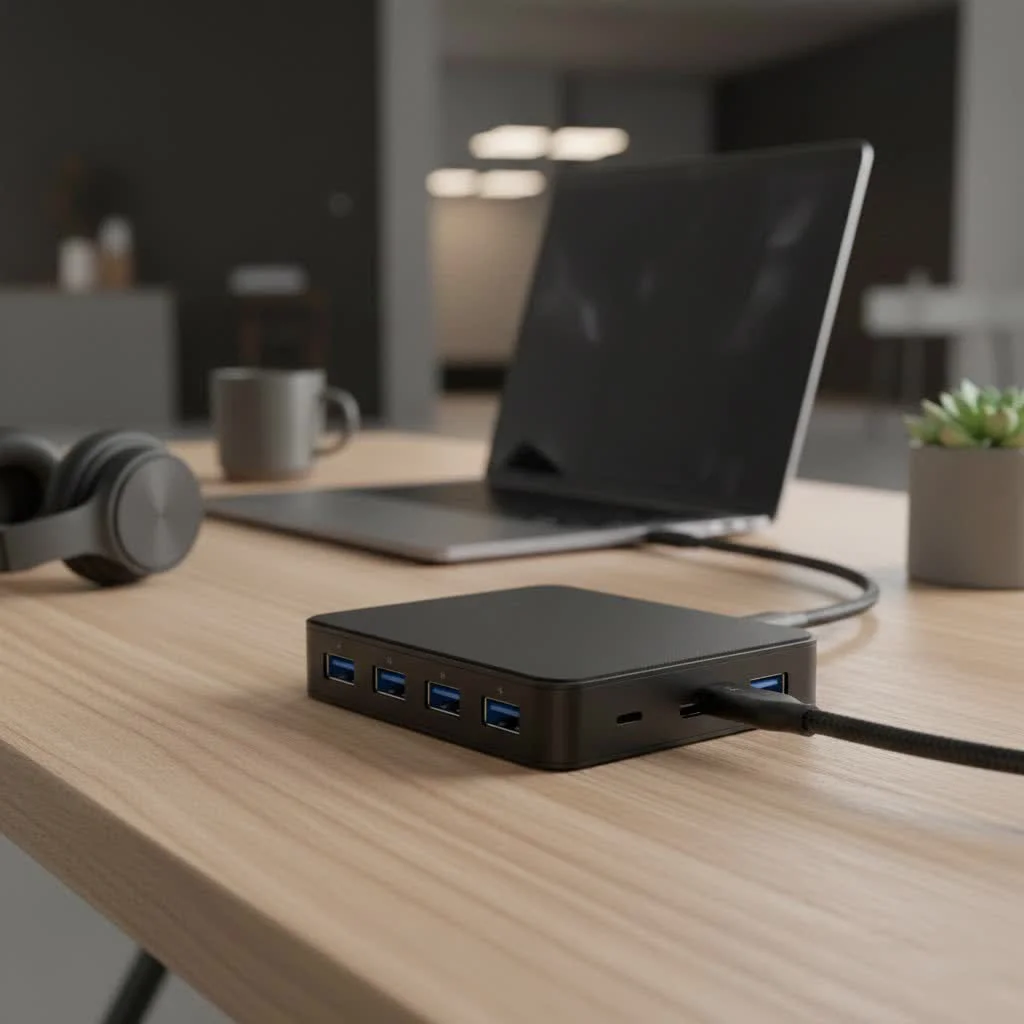
A high-quality hub USB for Mac is a compact device that expands a single USB-C port into a versatile workstation, essential for modern MacBooks with limited connectivity. It allows users to connect multiple peripherals like external drives, monitors, and memory cards simultaneously, addressing the common issue of insufficient ports on newer MacBook Pro and MacBook Air models. This guide details how to select the ideal hub for your Apple ecosystem.
Why Your MacBook Desperately Needs a USB Hub
Apple’s commitment to minimalism means newer MacBook Pro and MacBook Air models have shed traditional ports like USB-A, HDMI, and the SD card reader in favor of the more versatile USB-C (Thunderbolt) standard. While this streamlines the design, it creates a practical challenge for users.
A hub USB for Mac acts as a bridge, restoring a wide range of connectivity options. It allows you to connect legacy devices, external displays, and memory cards simultaneously, all through one port on your Mac. It’s not just a convenience; it’s an essential accessory for students, creative professionals, and anyone who needs to connect more than one peripheral at a time.
What Are the Key Features of a Mac USB Hub?
Navigating the world of USB hubs can be confusing with all the different standards and port types. Let’s break down the most important features to consider when making your choice.
Port Selection: The Heart of the Hub
The primary function of a hub is to provide more ports. Think about your daily workflow and the devices you use most often.
- USB-A: Essential for connecting older devices like keyboards, mice, flash drives, and external hard drives.
- HDMI/DisplayPort: Crucial for connecting your Mac to an external monitor, TV, or projector. Check the hub’s specifications for supported resolutions and refresh rates (e.g., 4K at 60Hz).
- SD and microSD Card Readers: A must-have for photographers, videographers, and drone pilots who need to transfer files from their cameras quickly.
- Ethernet Port: Provides a stable, high-speed wired internet connection, which is ideal for online gaming, streaming, or large file transfers where Wi-Fi might be unreliable.
- Audio Jack: A 3.5mm audio jack allows you to connect headphones or external speakers, a feature missing on some hubs.
USB-C vs. Thunderbolt: What’s the Difference for Mac Users?
While they use the same physical connector, USB-C and Thunderbolt are not the same. All MacBooks with USB-C ports support the Thunderbolt standard (Thunderbolt 3 or 4), which offers significantly higher performance.
- USB-C Hubs: These are more common and generally more affordable. They offer data transfer speeds typically up to 10Gbps, which is plenty for most everyday tasks.
- Thunderbolt Hubs/Docks: These are high-performance hubs that leverage the full bandwidth of the Thunderbolt port (up to 40Gbps). They can support multiple high-resolution displays (like dual 4K monitors) and ultra-fast external SSDs. They are the preferred choice for power users and creative professionals but come at a higher price.
“For most Mac users, a standard USB-C hub with a good selection of ports is perfectly sufficient,” notes Alex Carter, a senior hardware analyst at Meeob. “However, if your workflow involves multiple 4K displays or high-speed data-intensive tasks, investing in a Thunderbolt dock is a major upgrade for productivity.”
Power Delivery (PD): Charge and Connect Simultaneously
|
Our Picks for the Best USB Hub in 2026
As an Amazon Associate I earn from qualifying purchases.
|
||
| Num | Product | Action |
|---|---|---|
| 1 | Powered USB Hub, Wenter 11-Port USB Splitter Hub (10 Faster Data Transfer Ports+ 1 Smart Charging Port) with Individual LED On/Off Switches, USB Hub 3.0 Powered with Power Adapter for Mac, PC |

|
| 2 | Anker Laptop Docking Station Dual Monitor, 8-in-1 USB C Hub, 4K Dual Monitor with 2 HDMI, 1 Gbps Ethernet Hub, 85W Power Delivery, SD Card Reader for MacBook Pro, XPS and More (Charger not Included) |
|
| 3 | 3-in-1 USB C Splitter, 3 in 1 Type-C Charging Data Cable Data Transmission Decive Charging Adapter Power Charger Equipment for ome Office Use, Fast & Efficient |
|
| 4 | Powered USB Hub 10Gbps, intpw 9-Port USB 3.2 Hub, USB C Hub with USB A/USB C 3.2, 4 USB 3.0, 2 PD 45W Charging Ports, 65W Power Adapter and 3.3FT Cable, Aluminum USB Hub for Laptop, iPhone 17/16/15,PC |
|
| 5 | USB C Docking Station with M.2 NVMe SSD Enclosure 10Gbps, 9 in 1 USB-C Hub, Type C SSD Slot with 4K@60Hz HDMI, USB 3.2 Gen2, PD100W, SD/TF Card Reader, Laptop Docking Station for Dell/HP/Lenovo/Mac |
|
| 6 | 13 in 1 USB C Docking Station - Dual Monitor, Triple Display, 8 USB C/A Ports, Ethernet, Audio - LIONWEI USB C Hub for MacBook,Dell,HP,Lenovo,Surface |
|
| 7 | USB Hub 3.0, 7-Port USB Hub Splitter with Individual On/Off Switches and Lights, 3.2ft/1m Long Cable Compatible with MacBook, Laptop, Surface Pro, PS4, PC, Flash Drive, Mobile HDD |
|
| 8 | UGREEN USB 3.0 Hub, 4 Ports USB A Splitter Ultra-Slim USB Expander for Mouse, Keyboard, Flash Drive, U Disk, Printer Compatible with Laptop, Desktop PC, Xbox, PS5, and More |
|
| 9 | Anker USB Hub 4 Ports with 5Gbps Data Transfer, Multiple USB 3.0 Hub, USB Splitter for Laptop, Extender for A Port Laptop, PC, Desktop and More [Charging Not Supported](0.7 ft USB-A) |
|
| 10 | P9R PRO USB C Hub Ethernet, 10 in 1 USB Docking Station 10Gbps with 4K@60Hz HDMI, USB C and 2 USB A 3.2, LAN, 2 USB A 2.0, PD 100W, SD/TF Ports, USB to Ethernet Adapter for PC, iPhone 16/15, Mac |
|
Power Delivery is a critical feature that allows a USB-C hub to pass power from your charger to your MacBook. Without it, you’d have to choose between charging your laptop and using your hub. Look for a hub USB for Mac with at least 60W of Power Delivery to charge most MacBooks effectively. For a 16-inch MacBook Pro, a hub that supports 85W to 100W PD is recommended to ensure it charges at full speed under heavy load.
How to Choose the Right USB Hub for Your Mac
Selecting the perfect hub depends entirely on your specific needs. Here’s a simple checklist to guide your decision.
- Identify Your Mac Model: Are you using a MacBook Air, a 13-inch MacBook Pro, or a 16-inch MacBook Pro? This determines your power requirements and the type of ports you have (Thunderbolt 3/4).
- List Your Peripherals: Make a list of all the devices you need to connect at the same time (monitor, mouse, keyboard, hard drive, SD card). This will determine the number and type of ports you need.
- Consider Your Workspace: Do you need a portable hub for travel and coffee shops, or a more robust dock that will stay on your desk? Portable hubs are smaller and bus-powered, while desktop docks are larger, may require their own power adapter, and offer more ports.
- Set Your Budget: USB-C hubs can range from around $20 for a basic model to over $300 for a high-end Thunderbolt dock. Determine how much you’re willing to spend based on the features you absolutely need.
Frequently Asked Questions (FAQ)
Will a USB hub drain my MacBook’s battery?
A bus-powered USB hub will use a small amount of your MacBook’s battery to operate. However, if you choose a hub with Power Delivery and connect your charger to it, it will charge your MacBook while you work, negating any battery drain.
Are all USB-C hubs compatible with Mac?
Most USB-C hubs are designed to be universally compatible and will work with Macs. However, it’s always best to check the product description for explicit macOS compatibility to ensure all features, like specific display resolutions and refresh rates, are fully supported.
Can I connect multiple monitors with a USB-C hub to my Mac?
This depends on your Mac model; Macs with M1 chips natively support only one external display. M1 Pro, M1 Max, M2 Pro, and M2 Max chips support multiple external displays. To bypass the M1 limitation, you would need a more advanced hub or dock that uses DisplayLink technology, which requires installing a driver.
What is the difference between a hub and a dock?
The terms are often used interchangeably, but generally, a “hub” is smaller, bus-powered, and designed for portability. A “dock” is a larger, stationary unit that often has its own power supply, offering more ports and higher-end features like multiple display outputs and faster charging capabilities.
Conclusion: Expanding Your Mac’s Potential
A hub USB for Mac is no longer a luxury—it’s an essential tool for unlocking the full potential of your device. By restoring critical ports, it transforms your streamlined laptop into a powerful and versatile workstation capable of handling any task you throw at it. By evaluating your personal needs for ports, power, and portability, you can easily find the perfect hub to complement your MacBook and enhance your productivity. Don’t let a lack of ports limit your workflow; expand your connectivity and get back to creating.
How to Choose the Right USB Hub for Your Mac
Selecting the perfect USB hub for your Mac depends on your specific needs. Follow these steps to guide your decision.
Determine if you are using a MacBook Air, a 13-inch MacBook Pro, or a 16-inch MacBook Pro. This information is crucial as it dictates your power requirements and the type of ports available (Thunderbolt 3/4).
Make a comprehensive list of all devices you need to connect simultaneously, such as monitors, mice, keyboards, hard drives, and SD cards. This list will help you determine the exact number and types of ports required on your hub.
Decide if you need a portable hub for travel or a more robust desktop dock. Portable hubs are smaller and bus-powered, while desktop docks are larger, may require their own power adapter, and typically offer more extensive port options.
USB-C hubs vary widely in price, from around $20 for basic models to over $300 for high-end Thunderbolt docks. Establish how much you are willing to spend based on the essential features you require.
Get our weekly buyer guide
Practical specs, not advice. Unsubscribe anytime.

I bought a hub based on some of the recommendations for expanding a single USB-C port. It does connect my mouse and keyboard fine, but I was hoping to also run a second monitor through it, and the display output is a bit finicky. It works sometimes, but not consistently. Maybe I needed a more premium model for dual displays.
I was constantly juggling dongles for my MacBook Air, and it was driving me crazy. This guide really helped me understand the different types of hubs. I ended up getting one with an HDMI port and an SD card reader, and it’s been a game-changer for my workflow. No more unplugging my monitor just to transfer photos!
Finally, a solution for the limited ports on my MacBook! I needed something that could handle multiple peripherals, especially for connecting my external SSD and a couple of USB sticks. The hub I got has been super reliable, and I appreciate how it consolidates everything into one neat device. It’s exactly what I needed to make my desk setup cleaner.
My new MacBook Pro only has USB-C ports, which is a pain when I need to connect my older external hard drives. I picked up a hub that included a couple of USB-A ports, and it works perfectly. The only minor thing is that it gets a little warm sometimes, but nothing concerning. Definitely solved my connectivity issues.