A Ugreen USB C hub expands a single USB-C port into multiple connections, allowing modern laptops with limited ports to connect essential peripherals like monitors, mice, keyboards, and external hard drives simultaneously. These hubs are known for their sturdy aluminum casings and effective heat dissipation, ensuring stable performance even when all ports are in use.
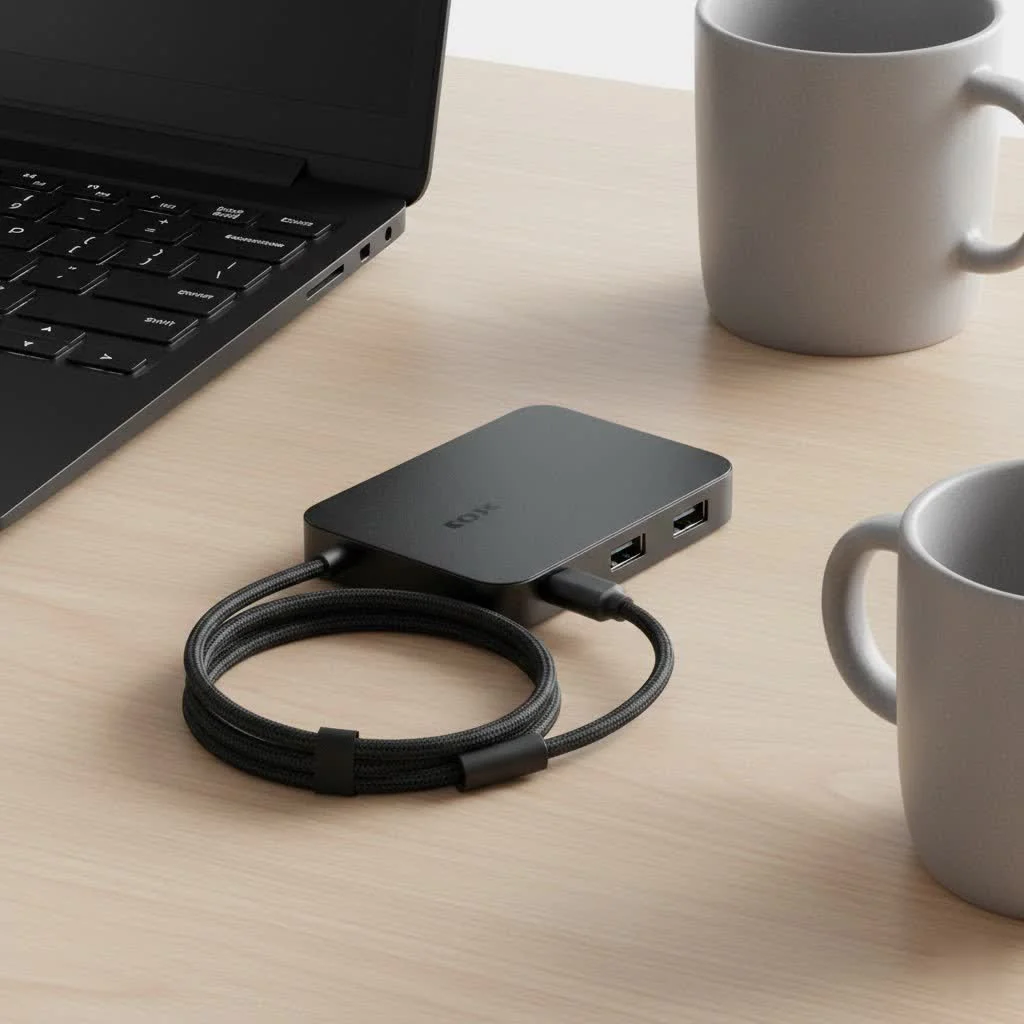
As a specialist with over a decade of experience testing and integrating these devices, I’ve seen how a quality hub can transform a workflow. Ugreen has consistently emerged as a leading brand that balances performance, build quality, and affordability. This guide will walk you through everything you need to know to choose the perfect Ugreen hub for your needs. For shop curated usb hubs on this site.
Why Should You Choose a Ugreen USB-C Hub?
When you’re looking for a USB-C hub, the market is flooded with options. So, what makes Ugreen stand out? It comes down to a reputation built on reliability and thoughtful design. Ugreen hubs are known for their sturdy aluminum casings that not only look premium but also excel at dissipating heat—a critical factor for performance and longevity.
“A common point of failure in lesser-known hubs is overheating, which can throttle data speeds and even damage your connected devices,” notes David Chen, a hardware engineer and tech analyst. “Ugreen’s focus on thermal management, combined with high-quality chipsets, ensures stable performance even when all ports are in use.” This commitment to quality means you get a device that works consistently, day in and day out.
Decoding the Ugreen USB-C Hub Collection
Ugreen doesn’t offer a one-size-fits-all solution. Instead, their product line is segmented to cater to different user needs, from the casual user to the demanding professional.
For the Everyday User: The Revodok Series
The standard Revodok series is the perfect starting point for most users. These hubs are typically compact and portable, making them ideal for hybrid workers or students who need to connect essential peripherals on the go.
- Common Ports: 2-3 USB-A 3.0 ports, a 4K HDMI port, and SD/microSD card readers.
- Best For: Connecting a wireless mouse, an external keyboard, a single 4K monitor, and transferring photos from a camera.
- Power: Many models include a USB-C Power Delivery (PD) port, allowing you to charge your laptop through the hub itself.
For the Power User: The Revodok Pro Series
If your desk looks like a command center, the Revodok Pro series is for you. These are more akin to full-fledged docking stations, offering a massive array of ports to support complex setups. They are built for professionals who need uncompromising performance.
- Expanded Ports: Multiple display outputs (dual HDMI or DisplayPort), a dedicated Ethernet port for stable internet, more USB-A and USB-C data ports, and faster transfer speeds.
- Best For: Video editors, graphic designers, software developers, and anyone running a multi-monitor setup.
- Performance: Often feature higher refresh rates (e.g., 4K@60Hz) and faster Ethernet speeds (up to 2.5Gbps on select models).
Key Features to Consider in a Ugreen Hub
Choosing the right Ugreen USB C hub involves looking beyond the port count. Here are the critical features you need to evaluate based on your specific use case.
Port Selection: What Do You Need to Connect?
|
Our Picks for the Best USB Hub in 2026
As an Amazon Associate I earn from qualifying purchases.
|
||
| Num | Product | Action |
|---|---|---|
| 1 | UGREEN USB 3.0 Hub, 4 Ports USB A Splitter Ultra-Slim USB Expander for Mouse, Keyboard, Flash Drive, U Disk, Printer Compatible with Laptop, Desktop PC, Xbox, PS5, and More |

|
| 2 | Powered USB Hub, Wenter 11-Port USB Splitter Hub (10 Faster Data Transfer Ports+ 1 Smart Charging Port) with Individual LED On/Off Switches, USB Hub 3.0 Powered with Power Adapter for Mac, PC |
|
| 3 | 3-in-1 USB C Splitter, 3 in 1 Type-C Charging Data Cable Data Transmission Decive Charging Adapter Power Charger Equipment for ome Office Use, Fast & Efficient |
|
| 4 | Anker Laptop Docking Station Dual Monitor, 8-in-1 USB C Hub, 4K Dual Monitor with 2 HDMI, 1 Gbps Ethernet Hub, 85W Power Delivery, SD Card Reader for MacBook Pro, XPS and More (Charger not Included) |
|
| 5 | USB Hub 3.0, 7-Port USB Hub Splitter with Individual On/Off Switches and Lights, 3.2ft/1m Long Cable Compatible with MacBook, Laptop, Surface Pro, PS4, PC, Flash Drive, Mobile HDD |
|
| 6 | Anker USB Hub 4 Ports with 5Gbps Data Transfer, Multiple USB 3.0 Hub, USB Splitter for Laptop, Extender for A Port Laptop, PC, Desktop and More [Charging Not Supported](0.7 ft USB-A) |
|
| 7 | Powered USB Hub 10Gbps, intpw 9-Port USB 3.2 Hub, USB C Hub with USB A/USB C 3.2, 4 USB 3.0, 2 PD 45W Charging Ports, 65W Power Adapter and 3.3FT Cable, Aluminum USB Hub for Laptop, iPhone 17/16/15,PC |
|
| 8 | P9R PRO USB C Hub Ethernet, 10 in 1 USB Docking Station 10Gbps with 4K@60Hz HDMI, USB C and 2 USB A 3.2, LAN, 2 USB A 2.0, PD 100W, SD/TF Ports, USB to Ethernet Adapter for PC, iPhone 16/15, Mac |
|
| 9 | USB C Docking Station with M.2 NVMe SSD Enclosure 10Gbps, 9 in 1 USB-C Hub, Type C SSD Slot with 4K@60Hz HDMI, USB 3.2 Gen2, PD100W, SD/TF Card Reader, Laptop Docking Station for Dell/HP/Lenovo/Mac |
|
| 10 | 13 in 1 USB C Docking Station - Dual Monitor, Triple Display, 8 USB C/A Ports, Ethernet, Audio - LIONWEI USB C Hub for MacBook,Dell,HP,Lenovo,Surface |
|
First, make a list of all the devices you want to connect simultaneously.
- USB-A: Still essential for mice, keyboards, webcams, flash drives, and older peripherals. Look for USB 3.0 (often colored blue) for speeds up to 5Gbps.
- HDMI/DisplayPort: For connecting external monitors. Check the resolution and refresh rate supported (e.g., 4K@30Hz vs. 4K@60Hz). For smoother video and gaming, 60Hz is highly recommended.
- Ethernet: A must-have for anyone needing a faster, more reliable internet connection than Wi-Fi. Perfect for online gaming, streaming high-resolution video, or large file transfers.
- SD/MicroSD Card Reader: Invaluable for photographers and videographers who need to transfer files from their cameras quickly.
- USB-C Power Delivery (PD): This port lets you plug your laptop’s charger into the hub, which then passes power through to your laptop. Check the wattage—a 100W PD port is ideal for most laptops like the MacBook Pro.
Power Delivery (PD): More Than Just Charging
Power Delivery is a crucial feature. A hub without PD means you’ll use one of your laptop’s precious USB-C ports for the hub and another for charging. A hub with PD frees up that second port.
Important Note: The wattage listed (e.g., 100W) is the maximum power the hub can receive. The hub itself consumes some power (typically 5-15W) to operate, so the actual power delivered to your laptop will be slightly less. For a 96W MacBook charger connected to a 100W PD hub, your laptop will receive around 85-90W, which is more than enough.
Video Output: Getting Your Display Right
If you plan to connect an external monitor, pay close attention to the video specifications.
- 4K@30Hz: This is standard on many budget-friendly hubs. It’s fine for static work like spreadsheets or browsing, but mouse movements and video will feel choppy.
- 4K@60Hz: This is the sweet spot for a smooth, responsive desktop experience. It requires your laptop to support DP 1.4 Alt Mode over USB-C.
- Dual Monitor Support: Some advanced Ugreen hubs can run two external displays. However, be aware of limitations, especially with Apple’s M1/M2/M3 MacBooks, which natively support only one external display (Pro/Max/Ultra chips support more).
How to Choose the Perfect Ugreen USB-C Hub
Follow this simple checklist to find the hub that fits you perfectly.
- Identify Your Main Device: Are you using a MacBook Pro, a Windows laptop like a Dell XPS, or a handheld like the Steam Deck? This determines compatibility, especially for video output.
- List Your Peripherals: Count the number and type of devices you use daily (monitor, mouse, keyboard, hard drive, etc.). Choose a hub with at least one more port than you currently need to future-proof your setup.
- Define Your Workspace: Are you always on the move or mostly at a desk? For travel, a smaller, bus-powered hub is ideal. For a permanent desk setup, a larger docking station with more ports is a better investment.
- Check Your Power Needs: Does your laptop charge via USB-C? If yes, a hub with at least 65W Power Delivery is highly recommended to ensure you can charge and work at the same time.
- Consider Your Internet Connection: If you demand lag-free gaming or stable video calls, an Ethernet port is non-negotiable.
Frequently Asked Questions (FAQ)
Is Ugreen a reputable brand for USB-C hubs?
Yes, Ugreen is widely regarded as a top-tier brand in the accessories market. They are known for producing high-quality, reliable products with excellent build quality and performance that often rival more expensive brands like Anker and CalDigit.
Will a Ugreen hub work with my MacBook Air/Pro?
Absolutely. Ugreen hubs are very popular with MacBook users. Just be mindful of the single external monitor limitation on standard M1/M2/M3 chips. For dual monitor support on these models, you would need a hub that uses DisplayLink technology.
Do I need to install any drivers for my Ugreen USB C hub?
For the most part, no. Most Ugreen hubs are plug-and-play on Windows, macOS, and ChromeOS. Core functions like USB ports, HDMI, and card readers work instantly. Some advanced models with specific Ethernet chips might require a one-time driver installation for full functionality, which is easily downloadable from the Ugreen website.
Can the Ugreen hub charge my laptop while I use it?
Yes, provided you purchase a model with a USB-C Power Delivery (PD) port. You simply plug your laptop’s original USB-C charger into the hub’s PD port, and it will pass power through to your laptop.
How does a Ugreen hub compare to an Anker hub?
Both Ugreen and Anker are excellent brands. The choice often comes down to specific port configurations and price. Ugreen sometimes offers similar or better specs at a more competitive price point. It’s always best to compare specific models from each brand that meet your port requirements.
Conclusion: Unlock Your Device’s Full Potential
In an era of minimalism, a Ugreen USB C hub is no longer just an accessory; it’s a necessity. It bridges the gap between portability and productivity, ensuring you’re never held back by a lack of ports. By evaluating your specific needs—from the number of devices you use to the resolution of your monitor—you can select a model that seamlessly integrates into your setup. Whether you choose a compact Revodok for your travels or a powerful Revodok Pro for your desktop, you are investing in a reliable solution that will expand your connectivity and simplify your digital life for years to come.
Frequently Asked Questions
Is Ugreen a reputable brand for USB-C hubs?
Yes, Ugreen is widely regarded as a top-tier brand in the accessories market. They are known for producing high-quality, reliable products with excellent build quality and performance that often rival more expensive brands like Anker and CalDigit.
Will a Ugreen hub work with my MacBook Air or Pro?
Absolutely, Ugreen hubs are very popular with MacBook users. However, standard M1/M2/M3 chips natively support only one external monitor, so for dual monitor support on these models, a hub using DisplayLink technology is required.
Do I need to install any drivers for my Ugreen USB C hub?
For the most part, no, most Ugreen hubs are plug-and-play on Windows, macOS, and ChromeOS, with core functions working instantly. Some advanced models with specific Ethernet chips might require a one-time driver installation, which is easily downloadable from the Ugreen website.
Can a Ugreen hub charge my laptop while I use it?
Yes, a Ugreen hub can charge your laptop if you purchase a model with a USB-C Power Delivery (PD) port. You simply plug your laptop's original USB-C charger into the hub's PD port, and it will pass power through to your laptop, typically delivering 85-90W from a 100W PD port.
How does a Ugreen USB C hub compare to an Anker hub?
Both Ugreen and Anker are excellent brands, offering reliable USB-C hubs. The choice often comes down to specific port configurations and price points, as Ugreen sometimes offers similar or better specifications at a more competitive price. It is recommended to compare specific models from each brand based on your port requirements.
Choose the Perfect Ugreen USB-C Hub
Follow these steps to select the ideal Ugreen USB-C hub that meets your specific connectivity and power needs.
Determine if you are using a MacBook Pro, a Windows laptop like a Dell XPS, or a handheld device such as a Steam Deck. This information is crucial for ensuring compatibility, especially concerning video output capabilities.
Make a comprehensive list of all devices you intend to connect simultaneously, including monitors, mice, keyboards, and external hard drives. Choose a hub that offers at least one more port than your current needs to future-proof your setup.
Consider whether you are frequently on the move or primarily work from a fixed desk. For travel, a compact, bus-powered hub is ideal, while a larger docking station with more ports is a better investment for a permanent desk setup.
Verify if your laptop charges via USB-C. If so, a hub with at least 65W Power Delivery is highly recommended to ensure you can charge your laptop and use the hub simultaneously without power interruptions.
If you require lag-free gaming, stable video calls, or large file transfers, an Ethernet port on your hub is essential. This provides a more reliable and faster internet connection than Wi-Fi alone.
Get our weekly buyer guide
Practical specs, not advice. Unsubscribe anytime.

Finally, a hub that actually works as advertised! I was tired of constantly swapping out devices on my limited laptop ports. This Ugreen hub has been fantastic for connecting my printer, webcam, and a USB stick simultaneously. The stable performance, even with all ports in use, is exactly what I needed. It’s clear why Ugreen is a leading brand in this space.
I’ve been using the Ugreen USB C hub for a few weeks now, and it’s been a game-changer for my home office setup. My new laptop only has two USB-C ports, and this hub lets me connect my external monitor, keyboard, and mouse all at once without any lag. The aluminum casing feels really solid, and I haven’t noticed any heat issues even when I’m running multiple devices. Definitely recommend it for anyone needing more ports.
This Ugreen hub is pretty great for the price. I needed something to connect my external hard drive and a couple of other peripherals to my MacBook Pro, and it handles everything smoothly. I appreciate the build quality; it feels much more durable than some of the cheaper plastic hubs I’ve tried. My only minor gripe is that the cable is a little short, but it’s not a dealbreaker.
I got this Ugreen USB C hub to expand the connectivity on my work laptop. It does a good job with my mouse and keyboard, but I’ve had some intermittent issues when trying to connect my second monitor through it. Sometimes it works perfectly, other times the display flickers or doesn’t connect at all. It’s a bit frustrating, but for basic USB devices, it’s fine.